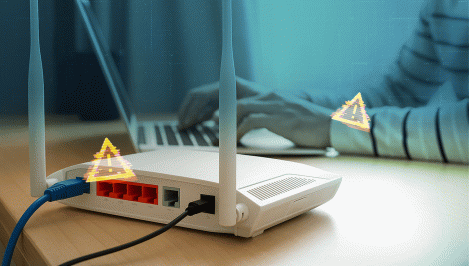
But like any gateway, there will always be some unauthorized individuals who want to get in. If they do, they could access your personal and financial information, steal your online account logins and even deploy ransomware. Or they could hijack your devices and conscript them into a botnet to launch attacks on others.
Read on to understand the warning signs your router may have been hacked, what to do about it, and how to prevent it from being compromised in the future.
Key takeaways:
- Your router is the gateway to every device in your home - which makes it a prime target for data theft and botnet recruitment.
- The strongest warning signs: you're locked out of your router’s admin panel, DNS or other settings have changed, unknown devices appear on your network, your browser keeps redirecting, speeds suddenly drop, or traffic spikes while you're idle.
- To confirm a hack, log in to the router's admin interface and check the settings, logs and firmware version - then run a network scan.
- If it's compromised: disconnect, factory reset, update the firmware, change every related password, and scan all your devices.
- Prevention comes down to strong unique credentials, automatic firmware updates, WPA3/WPA2 encryption, separate guest and IoT networks, WPS and UPnP switched off - and replacing any router that no longer receives updates.
How common is router hacking?
Some 80% of US households are estimated to own a home router. That means there could be hundreds of millions if not billions of these devices in the world. But because many are poorly configured and lack basic security features, they represent an attractive target for cybercriminals and nation states alike.
Major campaigns designed to hijack these machines include:
- VPNFilter and CyclopsBlink, which have been tied to the Russian state
- DNSChanger malware, linked to an Estonian cybercrime group
- Mirai attacks targeting routers alongside other smart home kit
- The KV-Botnet, built largely from end-of-life small office/home office routers and used by the China-aligned Volt Typhoon group - dismantled by the FBI in January 2024
- Raptor Train, a botnet of more than 200,000 routers, cameras and other IoT devices linked to the Flax Typhoon group, disrupted in an international operation in September 2024
Router compromise has become such a prevalent threat that the US Cybersecurity and Infrastructure Security Agency (CISA) urged router manufacturers in January 2024 to make a series of security-by-design improvements to their products — and in 2025, the FBI went a step further, advising consumers to retire end-of-life routers that no longer receive firmware updates, after exactly those devices were swept into the botnets above. Meanwhile, the US Cyber Trust Mark, a voluntary security label for consumer-grade IoT devices like routers, formally launched in January 2025, making it easier for shoppers to find the most secure products on the market.
Signs your router or Wi-Fi might be hacked
Attacks on your own home router could be part of a major campaign, like the ones listed above. Or they could be a one-off. But because they’re usually designed to be as covert as possible, it may not be immediately obvious what’s happened - unless your ISP notifies you. With that in mind, watch out for these tell-tale signs something may be wrong.
In short: to check if your router has been hacked, log in to its admin panel and look for changed DNS settings, unfamiliar devices, altered passwords or disabled security features. Being locked out of the admin interface, constant redirects to strange websites, and unexplained traffic spikes are the strongest warning signs.
Sudden drop in internet speed or strange device behavior
Watch out for low internet speeds, sudden disconnections, and devices going offline or rebooting unexpectedly. There are several possible harmless explanations for such occurrences. But it also could be that a hacker is using your bandwidth/devices to launch attacks on others, causing latency. Or it could be that they are updating the firmware and/or changing the router settings.
Unknown devices connected to your network
Any devices you don’t recognize could belong to hackers targeting your router. So:
- Check all your connected devices via the router’s admin panel
- Look for names or MAC addresses / IP addresses you don’t recognize
Router settings changed without your knowledge
If an attacker manages to hijack your router, they will try to alter various settings to achieve their goals. Watch out for these warning signs:
- Admin password no longer works (as they have locked you out)
- DNS settings have changed (in order to redirect you to malicious sites)
- Firewall is disabled (to leave your network exposed)
- Port forwarding settings are altered (to enable external access to your network)
- Network name has been changed (indicating someone has admin access to your router)
Redirects or popups on safe websites
Hackers with admin access could redirect your browser to wherever they like, including sites harboring malware and adware. So be wary if you are:
- Taken to strange or lookalike websites
- Supplied ads or popups even on trusted platforms (which could indicate DNS hijacking)
Data overages or unusual traffic usage
Hackers using your router and network to launch attacks on others might require more data and bandwidth than you would normally. So, watch out for:
- Your ISP flagging data cap overages
- High bandwidth usage even when idle
How to check for sure if your router is compromised
Hackers have various ways to hijack your router and Wi-Fi network. They might brute force your password (trying large numbers of variations of numbers/letters/characters in case one works) or credential stuffing (using previously breached logins). They may simply use the default manufacturer password, if you have not updated it. Or they might exploit a firmware vulnerability.
Work through the following steps to confirm whether your router has been compromised or not:
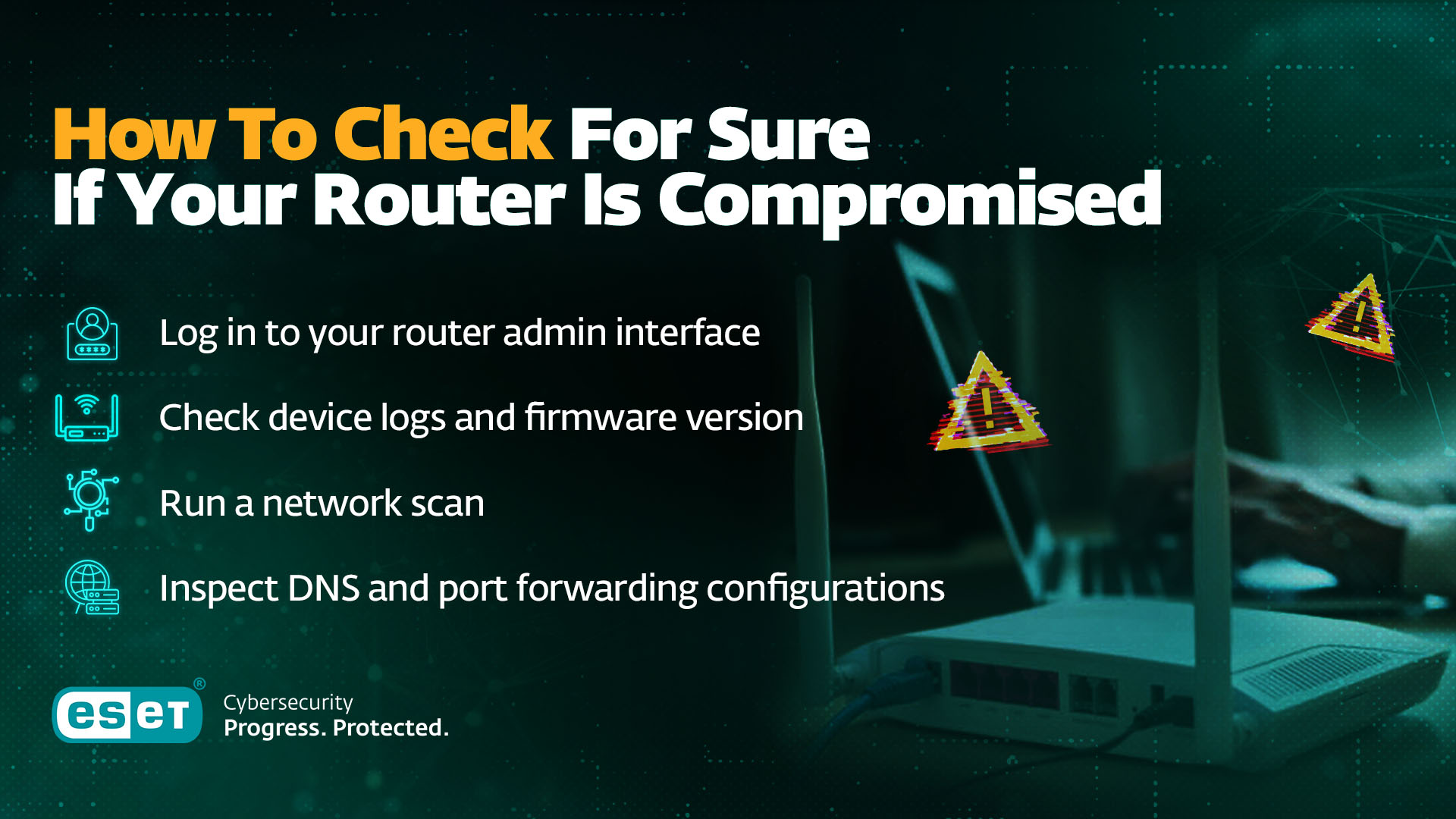
Log in to your router admin interface
- Check the bottom of your router for the default IP address and type it into your web browser. There should also be a default username and password listed there, or hopefully you have a new one saved in your browser. If you’re locked out, it probably means you’ve been hacked
- If you can access the interface, look for changed DNS settings, new users, changed passwords, and anything else unusual. Check for DNS settings by navigating to your router admin panel (type in the router IP address, usually listed on the back/bottom of the device, into a browser, then enter your logins). Compare the listed DNS settings to what they should be. For the latter, do a web search for your ISP’s DNS servers
Check device logs and firmware version
- Compare your firmware with the latest version listed on the manufacturer’s site
- In the device logs, check for the most recent login, and check the user/IP address/time to see if it might have been someone other than you
Run a network scan
- Use tools like ESET Network Inspector included in ESET HOME Security
- Use them to look for unrecognized devices and open ports which hackers could exploit
Inspect DNS and port forwarding configurations
Once again, via the admin console, look for indications of:
- DNS hijacking, which is used to redirect you to malicious sites. This could include changed DNS settings (see above), unexpected popups, slow page loading speeds, failed connections, and browser security warnings on trusted sites
- Suspicious open ports, which may indicate remote access
Think your router or wi-fi has been hacked? Here’s what to do
If you suspect the worst, stay calm and try the following to mitigate the fallout from a possible router hack:
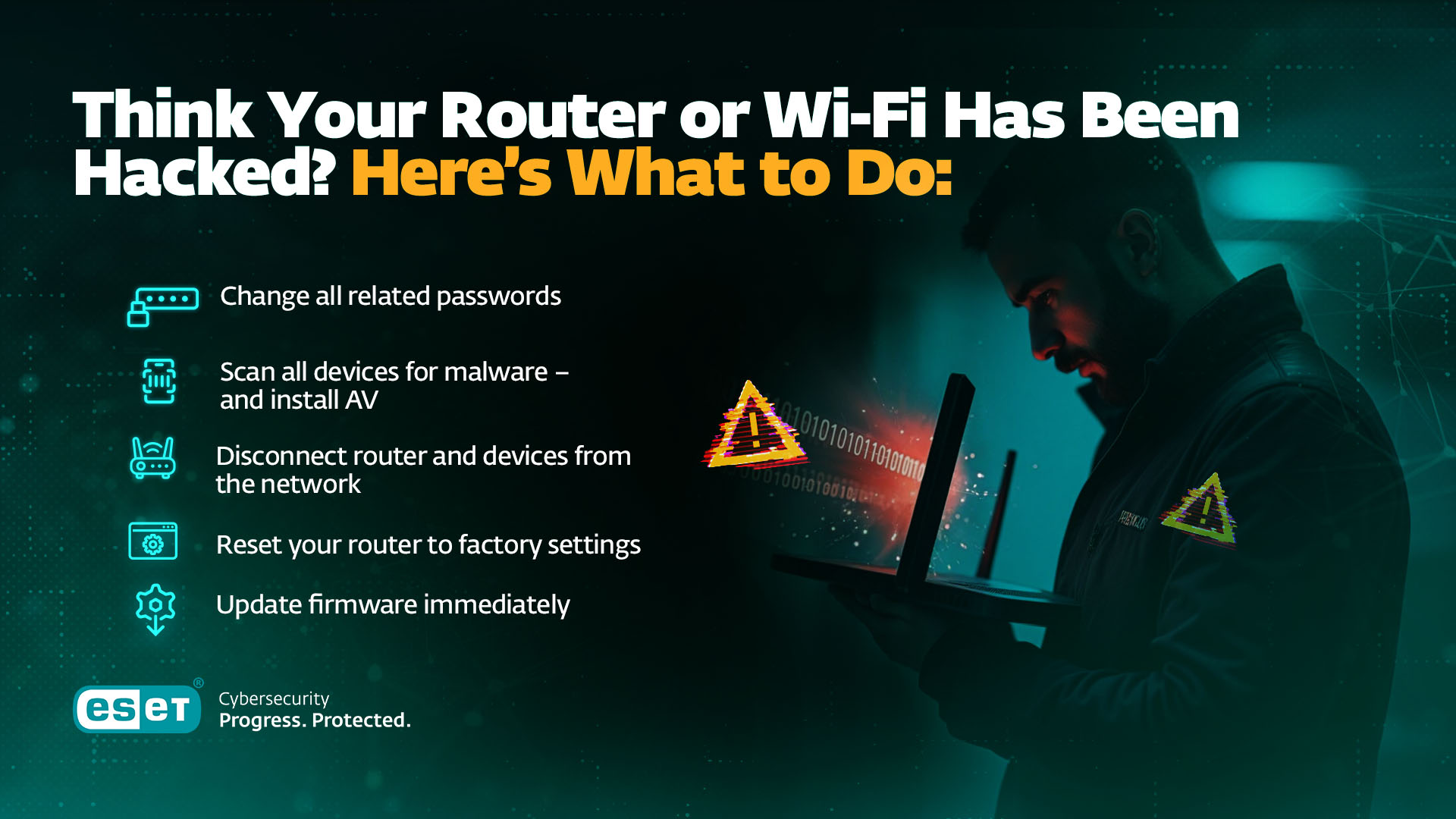
Disconnect router and devices from the network
This will cut your attacker’s connection, halting data leakage or device manipulation.
Reset your router to factory settings
This could enable you to remove malware or persistent scripts, kicking the hacker off your network/router. Use the physical reset button, and press for around 10 seconds.
Update firmware immediately
This will update the router firmware to the latest, most secure version, fixing any known exploits and security holes that hackers may have exploited.
Change all related passwords
This will help to lock the hacker out of your network, and any related online/device accounts they may have hijacked as a result. Consider updating your:
- Router, Admin panel, Wi-Fi, device, ISP portal passwords
- Banking, email, and cloud logins (if DNS hijacking is suspected)
Scan all devices for malware – and install AV
- Use reputable antivirus or endpoint protection like ESET HOME Security Premium (for personal use) or ESET Small Business Security (for personal and business use)
How to keep your router or Wi-Fi safe from hackers
Going forward, follow these best practices to ensure your router is resilient to future cyber-attacks:
Secure your router settings
- Change your default username and password
- Use multi-factor authentication (MFA) if available for extra router login security
- Update your SSID (Wi-Fi network name) to something unique
- Use strong encryption (WPA3, or WPA2 if not supported)
- Disable remote admin access unless absolutely needed. If you really need to remotely configure the router, use something like Zero Tier to connect to your local network and configure it from there
- Reboot the router periodically to remove any lingering malware
- Change the default ISP DNS settings to something more secure. There are some good options here and here. Configure your router to use DNS over HTTPS (DoH) if available
It’s also worth considering replacing your router every 2-3 years to take advantage of improved security standards that evolve over time. Consider replacement mandatory once your model stops receiving firmware updates - end-of-life routers are precisely what recent botnets like KV-Botnet were built from, and the FBI now explicitly advises retiring them.
Set up a new router securely
- Check the router’s manual for its IP address (=admin panel)
- Check the login credentials (username/password) on the bottom of your router – advisable to change it, although many manufacturers today already supply the device with unique and hard-to-guess passwords (sometimes even with QR code – that will stop working if changed from original)
- When logged in:
- Check if the router is running the latest firmware
- Change the SSID of your network to something unique and set up a long and unique but easy to remember password (ideally a passphrase)
- Set the encryption type of your Wi-Fi to WPA3/WPA2 (never WEP or WPA, which are considered insecure)
- For increased security, create three distinct networks – main, guest, IoT – main for people who will use the Wi-Fi daily, guest for anyone visiting, IoT for your smart devices – all with different SSID and passwords
- Enable and setup firewall on your router (or you can leave firewalling to your security software)
- Choose your preferred DNS server:
- EU/CloudFlare/Google other privacy oriented (EU) or reliable (CF,G) providers
- Some DNS servers remove all malicious and adult content – great for securing your network for your kids
- If you want to increase security, setup MAC filtering (similar to whitelisting) – allows only selected devices to connect to the Wi-Fi. This way, nothing gets connected unless the user allows it, however, this is more laborious as the admin (or router’s owner) needs to find the physical (MAC) address of any new device and add it to the list of allowed devices
- Some routers can be set to automatic reboot. If not possible via the admin panel, you can opt for hardware timer plug
Keep router firmware up to date
This will help to mitigate the risk of hackers exploiting firmware vulnerabilities:
- Set firmware updates to auto (if supported)
- Check manufacturer’s support site monthly and strongly consider replacing unsupported routers
- Strongly consider replacing the router if firmware is no longer supported
Create a guest network for visitors and smart devices
This means, if a guest’s device has malware on it, the threat will be contained. And if an IoT (smart) device in your home is vulnerable, it can’t be used to reach more sensitive data/devices. Remember to use different passwords and SSIDs for each network.
*However, be aware that doing this may cause usability issues (e.g. you won’t be able to control apps on your smart TV from your phone if they are on isolated networks).
Disable WPS and UPnP
Wi-Fi Protected Setup (WPS) allows you to connect devices to your home network without a password. But it can be brute forced. Universal Plug and Play (UPnP) enables devices within the network to discover each other seamlessly and is a frequent vector for malware. Both are best turned off, although *it’s important to note that doing so for UPnP may degrade performance for legitimate applications that use it.
Consider a VPN
If your router doesn’t have a pre-installed VPN functionality, consider installing a third-party VPN client to secure all devices connected to the home network.
ESET VPN, included in ESET HOME Security Premium and Ultimate, offers encrypted, private browsing and helps protect your online activity from prying eyes - especially useful when accessing sensitive services or using public Wi-Fi.
Check your router settings for VPN setup options, or use ESET’s step-by-step guide to configure it across your devices.
Audit devices regularly
Regularly check your router's admin control panel for any connected devices and remove those you don't recognize. Then change passwords to prevent future breaches, and scan for any backdoor malware in your environment.
Use ESET’s router and network protection tools
ESET Network Inspector can help identify vulnerabilities in your trusted home network such as open ports or a weak router password. It also provides a categorized list of connected devices so you can easily discover suspicious connections. ESET Network Inspector is part of ESET HOME Security, an all-in-one solution protecting your digital life from common cyber threats.
Expert tips & insights
“The biggest issue I see with vulnerable small office/home office (SOHO) routers—and Internet-facing IoT devices in general — is how easily they can be absorbed into large botnets without anyone noticing or caring. These compromised devices are then used to conduct attacks, such as massive DDoS or concealing traffic within vast and complex proxy networks built from these bots. These types of attacks pose a serious threat to the availability and stability of internet services. It is also concerning that services like “DDoS as a Service” (DaaS) are available on the dark web at extremely low prices, significantly lowering the barrier for unskilled attackers.
While manufacturers of IoT devices and routers are trying to respond to these threats by implementing additional security measures, a large part of the responsibility lies with users and network administrators. To keep devices secure, we would first and foremost advise readers to carefully choose a router brand, even if it means paying a bit more for quality. Look for brands with a strong reputation for privacy and security, offering features like automatic updates and the ability to easily segment your home network—for example, creating separate networks for kids, guests, IoT devices, etc. Also, avoid exposing services such as HTTP(S), Telnet, or Secure Shell (SSH), and block remote access and requests originating from WAN. This significantly lowers the risk of your router being exploited from the Internet.”
- Miloš Čermák, Senior Malware Researcher
Frequently asked questions
Can someone hack my router from outside my home?
Yes, they can do so by guessing/cracking your password if remote access is enabled or if vulnerabilities exist in its firmware. However, vulnerabilities can only be exploited if accessible — so if you block remote access and set your firewall to block everything originating from WAN, it cannot be targeted in this way.
How do I know if my neighbor is stealing my Wi-Fi?
Look for unfamiliar device names or MAC addresses in your router’s device list.
What’s the best way to protect my home internet?
Update router firmware regularly, use a strong password (and MFA if possible), separate standard, guest and IoT Wi-Fi networks, and install reputable security software/firewall. Also, choose a router from a trustworthy brand with a good track record on security. Check how many severe remote code execution vulnerabilities have been found in their products in the past.
How can a guest and/or IoT network help protect my home internet?
It will isolate potentially vulnerable smart devices and potentially compromised guest devices.
How can I check if my Wi-Fi is hacked?
By logging into the router admin interface and looking for changed DNS settings, new users, changed passwords and anything else unusual. Also consider running a network scan to check for vulnerabilities and unusual devices.
Does turning off Wi-Fi stop hackers?
It will stop hackers lurking near your house from trying to get onto your device, but not those using other tactics via the internet. You’ll need to change your router settings, keep firmware up to date, use anti-malware software, and disable WPS and UPnP to be sure (be aware that this is a question of tradeoffs. Increased security can create usability issues via interfering with UPnP).
Does factory resetting my router get rid of hackers?
Usually, yes - a factory reset wipes most router malware and reverses any settings the attacker changed. But it also reopens every door they used in the first place: the reset restores default credentials and old firmware. Always pair a reset with an immediate firmware update and new, unique admin and Wi-Fi passwords, or you risk being re-compromised the same way.
How often should I replace my router?
Plan on every few years - and immediately once the manufacturer stops releasing firmware updates for your model. Unpatched, end-of-life routers are exactly what recent large-scale botnets were built from, which is why the FBI now advises retiring them. When you buy a replacement, look for automatic updates, WPA3 support and, in the US, the Cyber Trust Mark label.