
Blocking websites outright can provide peace of mind. But there are several ways to do so, depending on the browser, the device, and your technical ability.
But don't worry, it's not difficult. Blocking a website on Chrome takes under two minutes. On Safari, it's handled through Screen Time. On an iPhone, the same tool covers every browser at once. This guide walks you through the fastest method for your device - whether you're a parent setting limits for a child, someone trying to cut distractions at work, or just trying to keep a dangerous site from loading.
Key takeaways
- This guide covers Chrome, Firefox, Edge, Safari, iPhone, Android, and whole-network blocking methods.
- No single method works everywhere - choose the right approach for your device and situation.
- Some methods take under two minutes; others require admin access.
- For parents: Screen Time (iPhone/Mac) and Google Family Link (Android) are built-in options with no extra apps needed.
- ESET security products include URL blocking as part of Browser Privacy & Security - no extension required.
How to block websites on Chrome
Using a Chrome website extension
One of the easiest ways to block websites on Chrome is via an extension. That’s because the browser doesn’t allow regular/non-admin users to do so. Software developers have created many popular free browser add-ons tailor-made to block websites. These can be found on the chromewebstore, where both the performance rating and instructions are available.
As a point of caution, ESET does not endorse the use of any specific browser extension since there are potential risks of exploitation by malicious actors or malware. ESET security products offer various Browser Privacy & Security functions including URL blocking.
Steps:
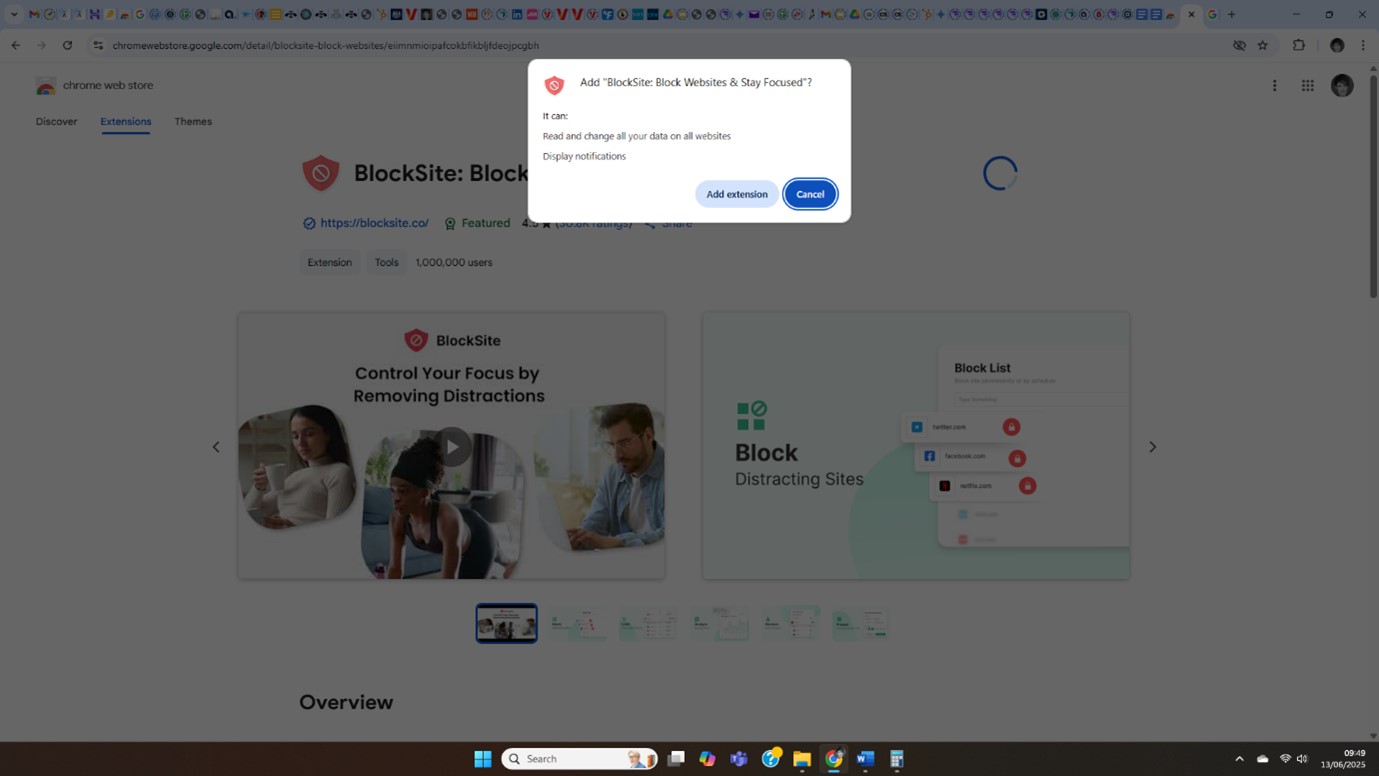
- Open the Chrome Web Store and search for the extension you require.
- Click "Add to Chrome" and “Add extension” in the pop-up box, to install the extension.
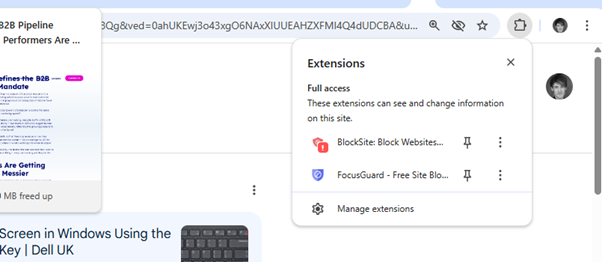
- After installation, click the extension icon in the toolbar. If you don't see it, click the puzzle-piece icon (
 ) at the top right corner in Chrome to find and pin it.
Enter the website URLs you want to block and save changes.
Using Windows parental controls (Microsoft Family Safety)
If you’re a concerned parent, try Windows 11 built-in parental controls via Microsoft Family Safety. (Note: the macOS/iOS version of parental controls, Screen Time, is shown below, but is not available on Chrome).
Steps:
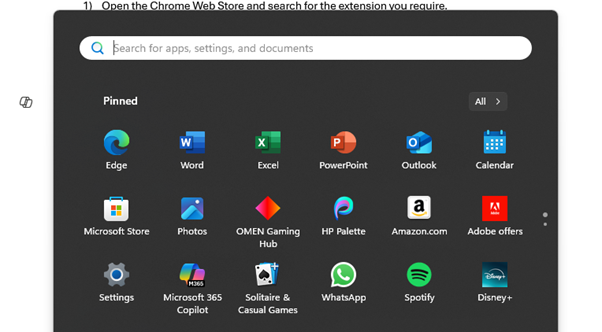
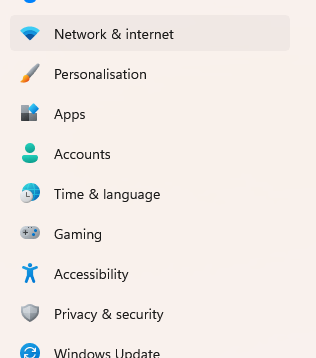
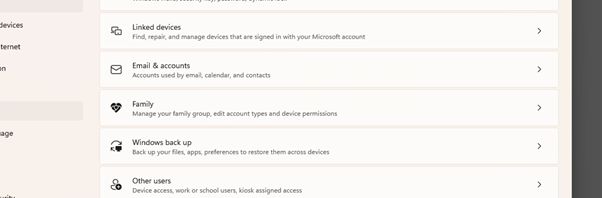
- Go to the Windows menu and click Settings > Accounts.
- Scroll down to “Family” > “Add Someone.”
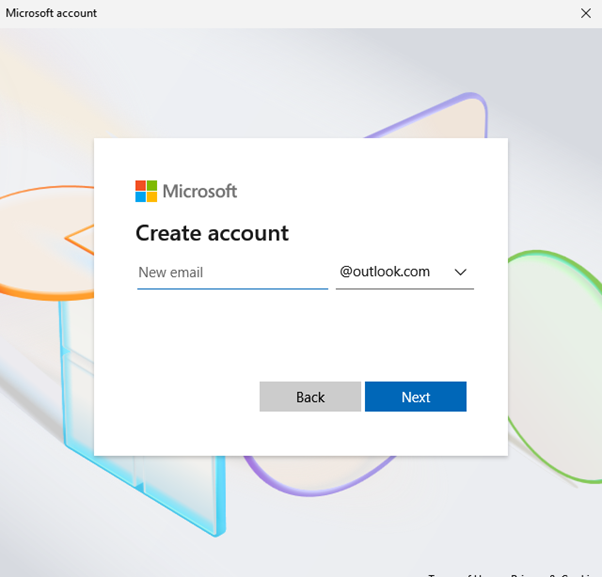
- A new window will pop-up. Ignore the email address box and click the text “No Microsoft account? Create one for a child.”
- After creating the account, you can access it through your Microsoft account page.
- Go to “Content filters” > “Blocked sites.” Then, enter the URL of the site you want to block.
- Click “+” to add the domain to your block list.


For Chrome Enterprise admins
If you run a Chrome Enterprise environment and are an administrator, you can block specific websites across multiple devices using URLBlocklist and URLAllowlist policies.
Steps for administrators:
- Access the Google Admin console.
- Navigate to Devices > Chrome > Settings.
- Under "Content", click "URL Blocking."
- Enter the URLs you wish to block under "Blocked URLs."
- You can also specify exceptions under "Blocked URL exceptions."
- Click "Save" to apply the settings.
These instructions will work for any device or enrolled browsers on Windows, Mac, Linux or Android. More information is available here.
Windows system-wide blocking
Windows also offers a method of blocking websites. It’s slightly more advanced and will require you to use an administrator account.
Steps:
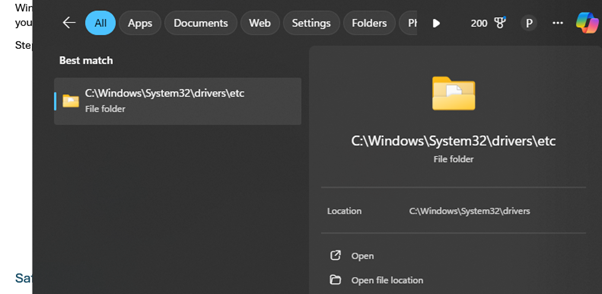
- Search for "Notepad" in the Start menu.
- Right-click on "Notepad" and select "Run as administrator."
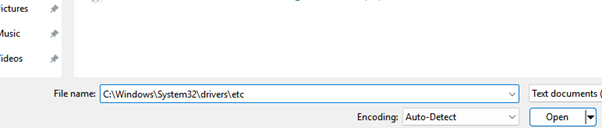
- In Notepad, go to File > Open.
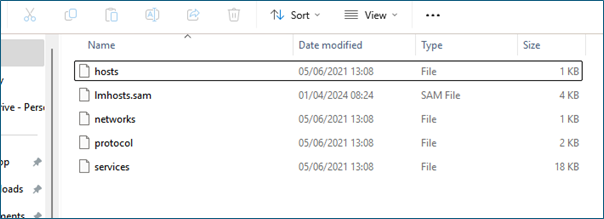
- Navigate to C:\Windows\System32\drivers\etc.
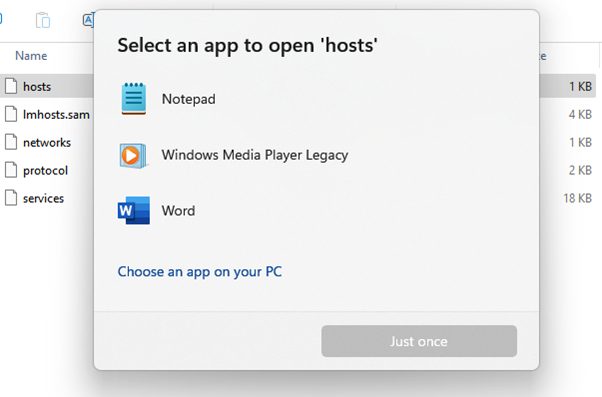
- Click on "hosts".
- In the pop-up “Select an app to open hosts” Click the "Notepad" icon.
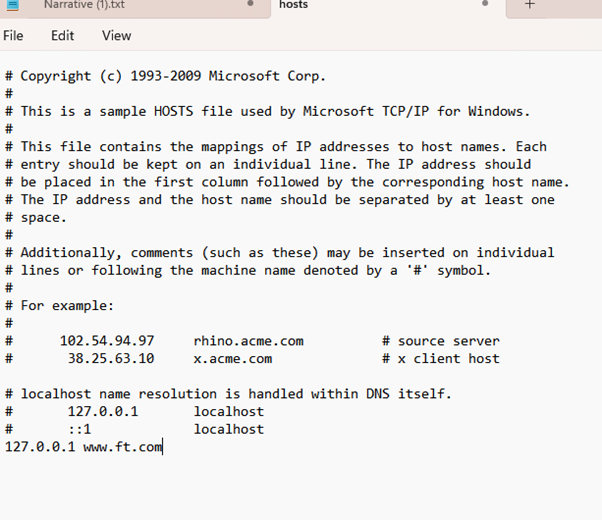
- At the bottom of the file, add new lines. For each website you want to block, type 127.0.0.1 followed by a space, then the website's domain (eg 127.0.0.1 www.ft.com).
- Go to File > Save.
- Open the Start menu, search for Command Prompt, right-click it, and select Run as administrator. Type ipconfig /flushdns and press Enter. This flushes the DNS cache immediately - faster than restarting.

How to block websites on Safari
Using Screen Time on Mac
Screen Time is a macOS feature that lets you manage and monitor web usage, including website blocking - both for yourself and for your children.
Steps:
- Click the Apple menu and select "System Settings."
- Go to "Screen Time" > "Content & Privacy."
- Toggle "Content & Privacy Restrictions" to ON.
- Click "Content Restrictions" then “Web Content."
- Choose "Limit Adult Websites" or "Allowed Websites Only."
- To block specific sites, click "Customize", then add the URLs under "Restricted."
- Set a Screen Time passcode: go to Screen Time > Use Screen Time Passcode. Without this, restrictions can be removed without a password.
- Set up a passcode for a child: Click the Family Member pop-up menu > choose a child > scroll down and click Manage Screen Time > turn on Lock Screen Time Settings > enter your passcode.
Using Terminal on Mac (advanced)
If you’re feeling confident, you can also edit the hosts file to block websites on a macOS, no matter what the browser. As such, it works in a similar way to that described above for Windows.
Steps:
- Open "Terminal" from the Utilities folder.
- Enter sudonano/etc/hosts and press Enter.
- Add a new line with 127.0.0.1 followed by the website’s domain (e.g., 127.0.0.1 www.example.com).
- Press Control-O to save and Control-X to exit.
- Flush the DNS cache by entering sudo dscacheutil - flushcache; sudo killall -HUP mDNSResponder.
How to block websites on Firefox
Firefox doesn't include a built-in site block list, but it offers two straightforward approaches.
Using a Firefox browser extension
Steps:
- Open Firefox and click the menu icon (≡) in the top right corner.
- Select Extensions and themes, or type "about:addons" into the address bar
- Search for the website-blocking extension (try: "block site", "focus", "productivity blocker").
- Click Add to Firefox and confirm the permission prompt.
- Open the extension settings and add the URLs you want to block.
Using the Windows or Mac hosts file
Firefox respects the same system-level hosts file as Chrome and Edge. The Windows system-wide blocking and macOS Terminal methods described above will block websites in Firefox and every other browser simultaneously - no extension needed.
How to block websites on Microsoft Edge
Edge is built on the same Chromium foundation as Chrome, so website blocking follows a similar process - using an extension from the Edge Add-ons store.
Using an Edge browser extension
Steps:
- Open Edge and go to the Microsoft Edge Add-ons store.
- Search for "block site" or "website blocker".
- Click Get on your chosen extension.
- After installation, click the extension icon and add the URLs you want to block.
Edge also supports the same Windows hosts file method described above - this blocks sites in Edge and all other browsers simultaneously.
How to block websites on iPhone
Using Screen Time (recommended)
The Screen Time feature in iOS is a simple but effective tool to restrict access to specific websites.
Steps:
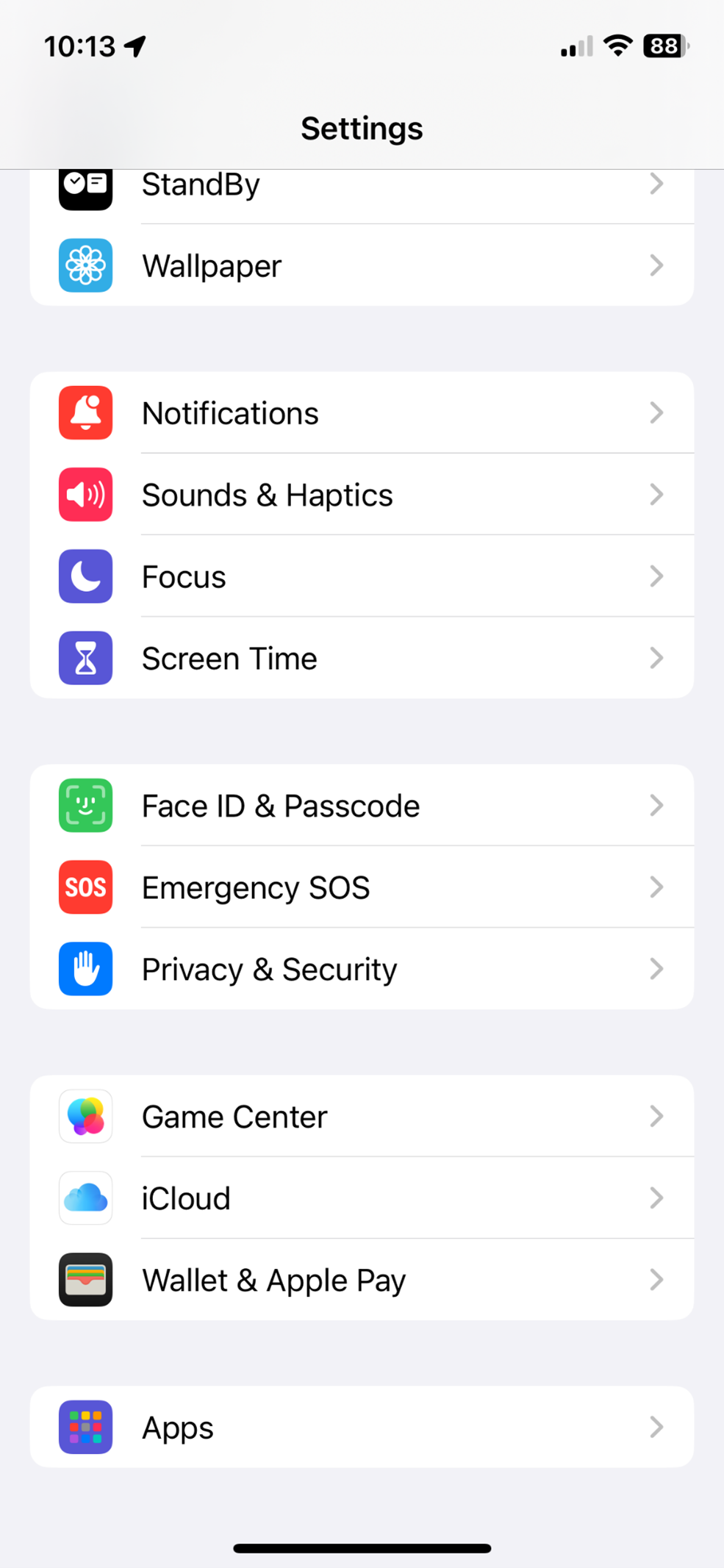
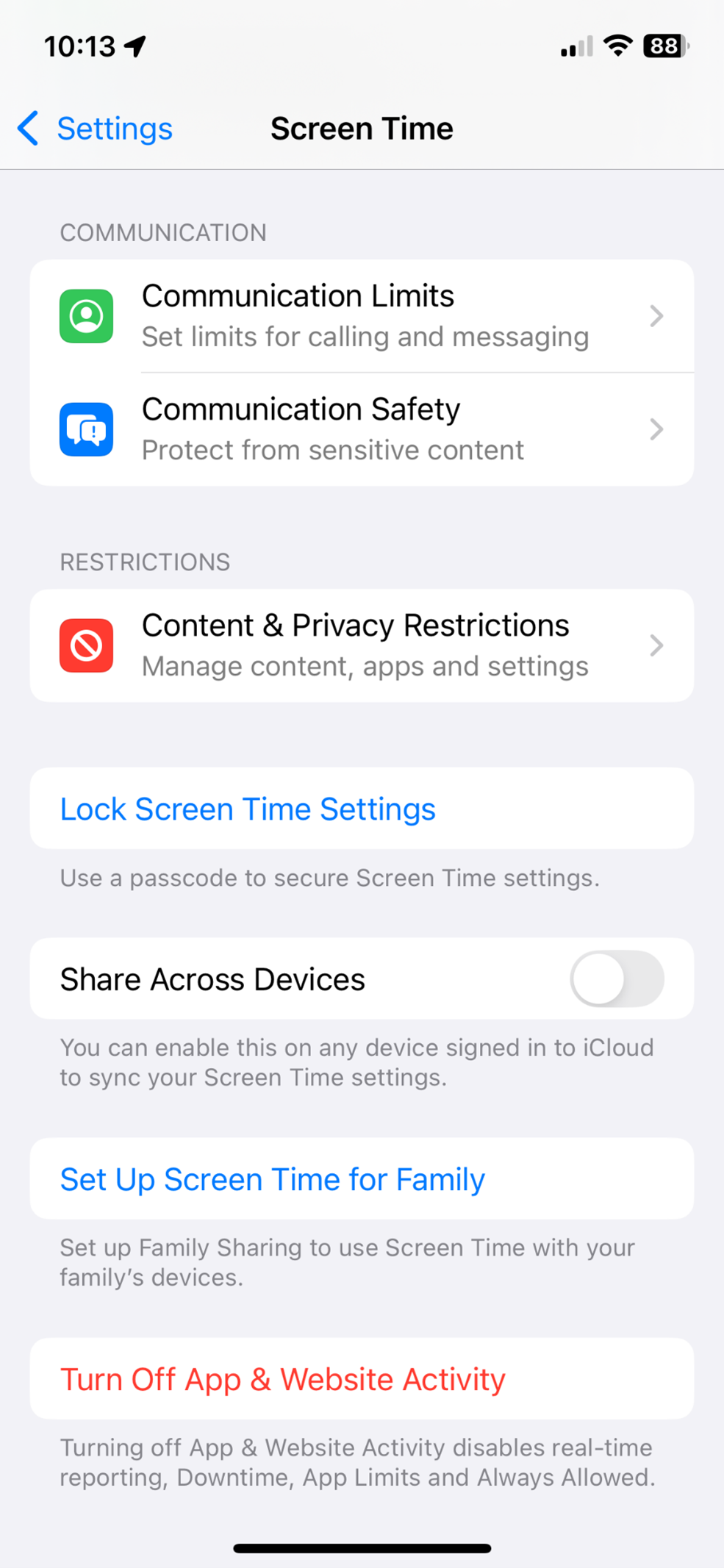
- Open "Settings" and tap "Screen Time."
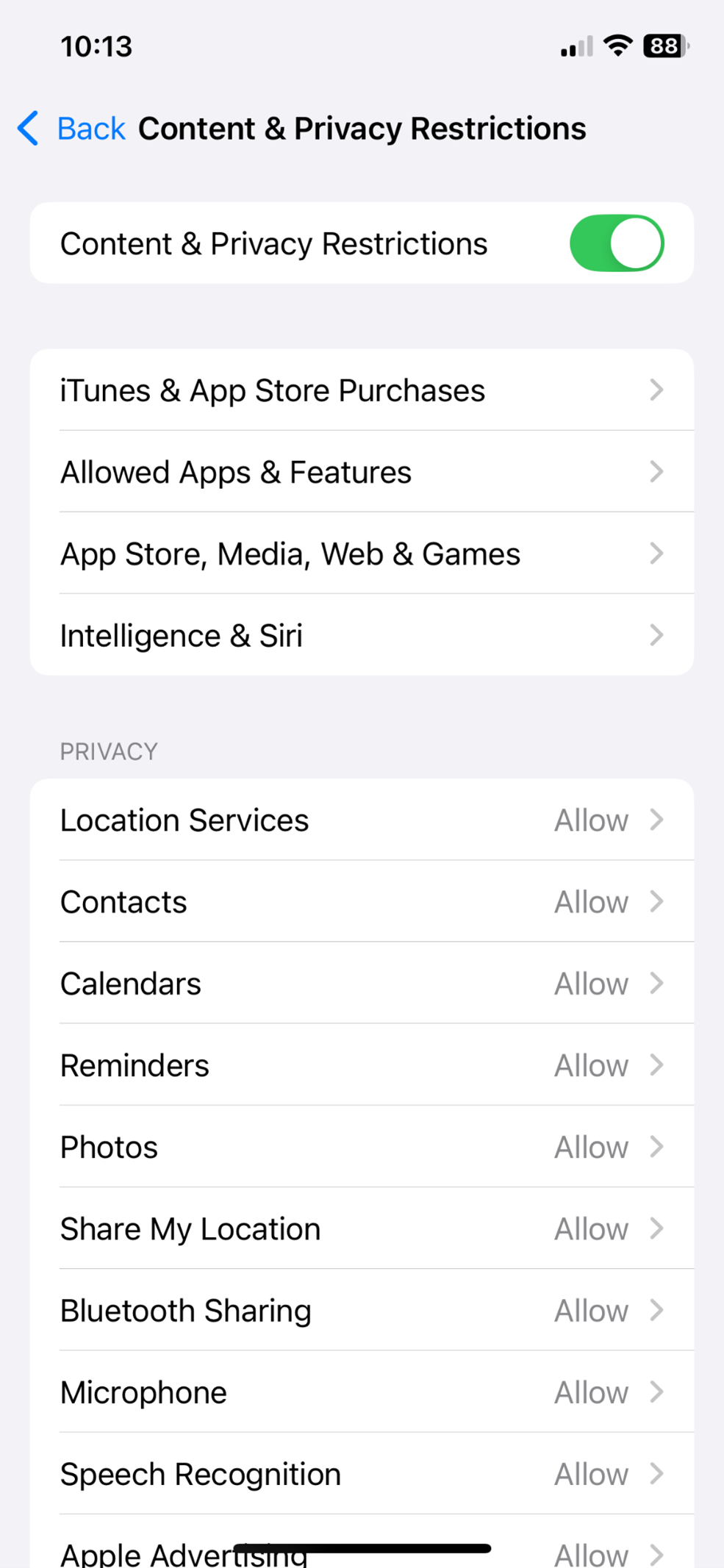
- Tap "Content & Privacy Restrictions" and enable it.
- Tap "App Store, Media Web & Games" > "Web Content."
- Select "Limit Adult Websites."
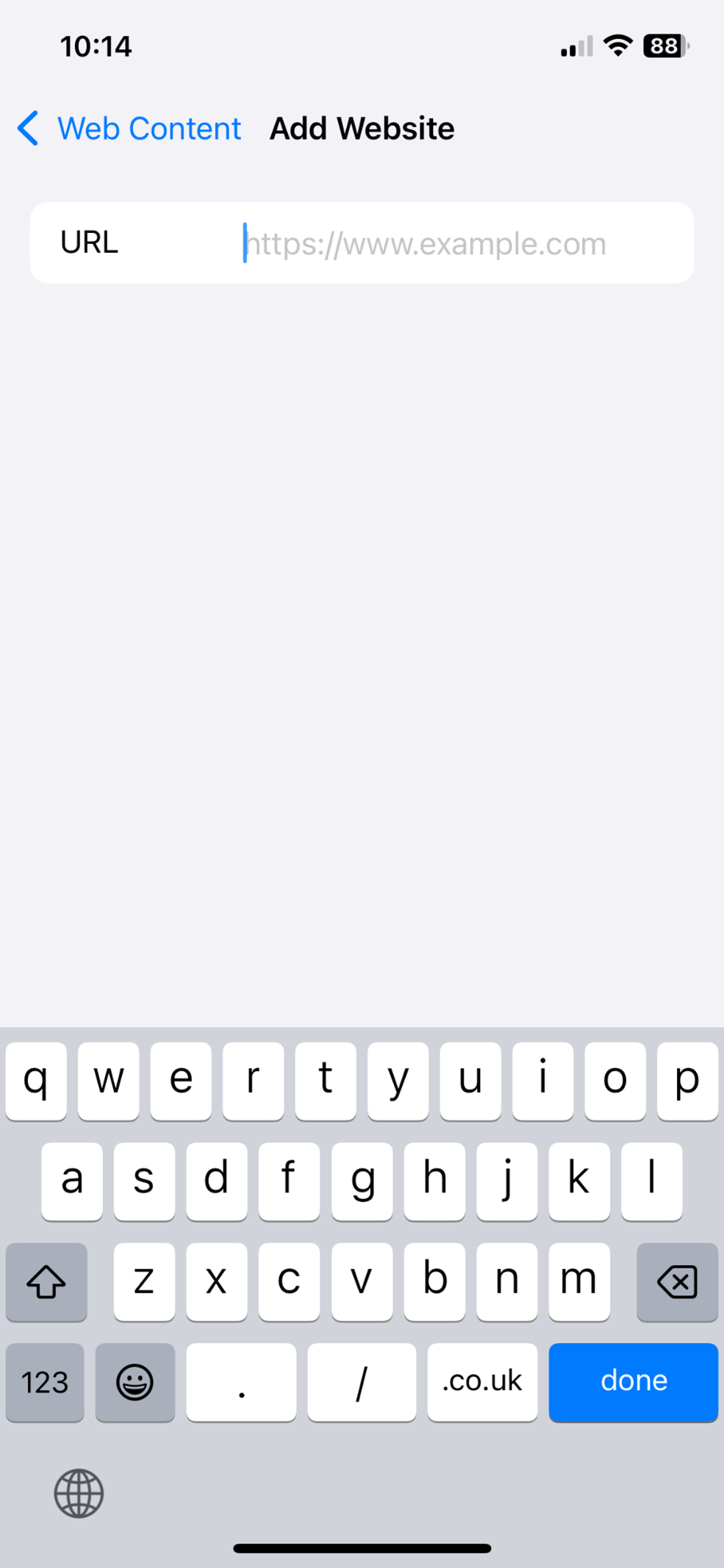
- Under "Never Allow", tap "Add Website" and enter the URL you want to block.
- Set a Screen Time passcode: tap Screen Time > Use Screen Time Passcode in Lock Screen Time Settings. Without this, the restrictions can be turned off from Settings without a password.

Using App Limits
To limit time spent on specific websites:
- Go to "Settings" > "Screen Time" > "App Limits."
- Tap "Add Limit" > "Websites."
- Click "Add website" (or check one from the existing list), add the website URL and set a time limit (minimum of 1 minute).


How to block websites on Android
Android's built-in Digital Wellbeing feature helps monitor and limit app usage, but it doesn't provide website blocking. The two options below cover most situations.
Using Google Family Link (for parents)
Google Family Link is Google's own free parental control app. It lets parents approve app downloads, set screen time limits, and block specific websites in Chrome on the child's Android device.
Steps:
- Download Family Link from the Play Store onto the parent's device.
- Open Family Link and follow the setup flow to link to your child's Google account.
- In the Family Link app, tap your child's name > Manage settings.
- Tap Google Chrome > Manage sites > Blocked.
- Tap Add a site and enter the URL you want to block.
Using third-party applications
Apps available on the Google Play store can block both websites and apps on Android devices.
*Ensure that you consider ratings and reviews carefully as third-party apps can come with risks.
Steps:
- Download and install your chosen 3rd party URL blocker from the Google Play Store.
- Open the app and grant the necessary permissions.
- The process varies by app, but most follow a similar pattern: add the URLs you want to block from within the app settings and save your changes.
Block websites across your entire network
The methods below work at the network level, covering all devices and all browsers connected to your router - no app or extension needed on individual devices.
DNS-level blocking
DNS-level blocking works by pointing your router to a DNS server that filters out unwanted domains. Several free services offer content filtering:
- Cloudflare for Families - enter 1.1.1.3 and 1.0.0.3 as your DNS servers. Blocks malware and adult content.
- AdGuard DNS - for default servers, enter 94.140.14.14 and 94.140.15.15. to block ads, trackers, and malicious domains. For family servers, enter 94.140.14.15 and 94.140.15.16 to block ads, trackers, phishing and adult websites, and to enforce safe search in your browser.
- NextDNS - customizable filtering via a web dashboard. A free tier is available.
- DNS4EU - a content-filtering DNS service backed by the European Union.
Steps:
1. Go to your router admin panel using 192.168.01.1 (may differ for each router, check router manual or bottom side of the device).
2. Find DNS server settings (differs from router to router).
3. Change the DNS server entries to your chosen provider (e.g. enter 1.1.1.3 for Cloudflare Family). Check your provider's documentation for the exact values.
Router-level website blocking
Similar to the above method, blocking websites at the router level also means that all devices connected to the network are covered.
Steps:
- Access your router’s admin panel (usually by entering 192.168.1.1 or 192.168.0.1 in a web browser).
- Log in with your admin credentials.
- Navigate to the section for website filtering or access restrictions.
- Enter the URLs you want to block and save the settings.
Note: The exact steps may vary depending on your router’s make and model.
Google SafeSearch, Bing SafeSearch and YouTube Restricted Mode
SafeSearch filters explicit content from search results. It doesn't block specific sites, but it reduces the likelihood of encountering inappropriate content in search results and videos.To filter content deemed explicit by Google, enable SafeSearch in any supported browser.
Steps Google SafeSearch:
- Go to the Google homepage.
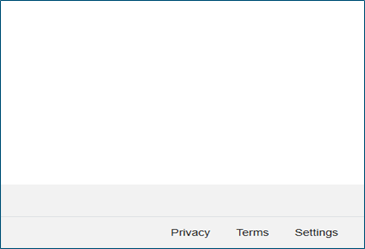
- Click on "Settings" in the bottom right corner.
- Click "Search settings."
- Click on "SafeSearch."
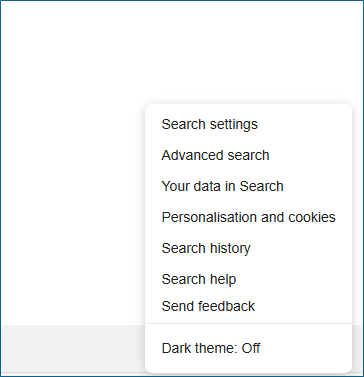
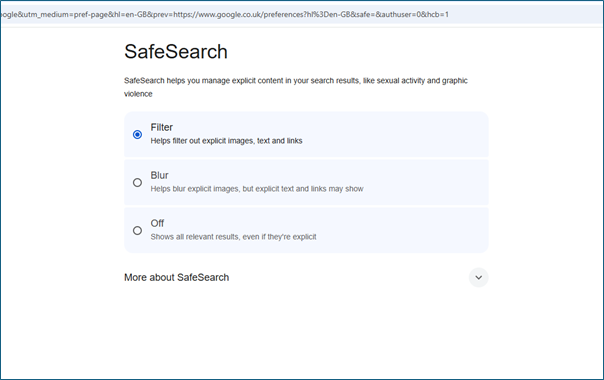
Steps Bing SafeSearch:
- Go to bing.com and click the menu icon > Settings.
- Under SafeSearch, choose Strict, Moderate, or Off.
- Click Save.
Steps YouTube Restricted Mode:
- Go to youtube.com and click your profile icon in the top right.
- Scroll down and click Restricted Mode.
- Toggle it on. To lock this setting for a child's account, manage it through Google Family Link.
Top tips for effective website blocking
- Set clear objectives: Understand why you want to block websites. Is it for enhancing your productivity, improving security and privacy, or to protect your children?
- Combine methods: There’s no one-size-fits-all method, so consider multiple blocking techniques (e.g., browser extensions and DNS-level blocking) to provide more robust protection.
- Regularly review settings: Your goals may change over time, as will the list of websites you want to allow/block. So periodic audits are important to ensure your policy remains relevant.
- Allow list versus Deny list: Do you want to allow everything and block specific sites (more common), or block everything and only allow a small number of sites (better for young children).
- Educate users: Be sure to sit down with family members to discuss why you’re restricting access to certain types of content. Getting their buy-in means they’ll be less likely to try and circumvent any measures.
- Use a Screen Time passcode: if you're using Screen Time on iPhone or Mac to protect a child's device, set a passcode under Settings > Screen Time > Use Screen Time Passcode. Without it, restrictions can be switched off.
What our cybersecurity expert says
“With the rapid improvement of technologies such as generative AI models, machine translation tools, semi-automated bots like Telekopye, and web templates, it’s now alarmingly easy to create fake, phishing, and malicious websites. AI-driven tools are enabling the creation of an increasing amount of inappropriate and deepfake content, raising urgent concerns about children’s exposure to deepfake pornography and violent material. On top of this, the wave of misleading ads and fast-spreading investment scams—like the Nomani campaigns tracked by ESET—shows just how quickly these threats can multiply, putting people at risk of identity theft, manipulation, and financial or reputational harm.
To avoid risks like these, a layered approach is not an option but a necessity, using all available protective measures ranging from parental controls, browser extensions, and security software with web filtering on individual devices, to network-level solutions such as router-based blocking, secure DNS services, and properly set up firewalls. Combining smart technology with ongoing awareness is probably the only defense approach effective against today’s fast-evolving online threats.”
- Ondrej Kubovič, ESET Security Awareness Specialist
Protect your browsing with ESET
Blocking harmful websites on your computer or phone is just the first step. With ESET, you get comprehensive protection to safeguard your browsing, financial transactions, and personal data:
- Multilayered Anti-Phishing – Stay safe from deceptive links and scams.
- Safe Banking & Browsing – Secure your online payments and protect sensitive financial transactions.
- Browser Privacy & Security – Prevent trackers from collecting your data for a more private browsing experience.
- Unlimited VPN – Maintain online anonymity, even on public Wi-Fi.
Experience worry-free browsing today! Try ESET HOME Security Ultimate and protect what matters most to you and your family.

Are you self-employed or a small business owner? Avoid distractions in your daily work and protect your business with ESET Small Business Security.
Frequently asked questions
How do I block a website in Chrome?
Unless you are a Chrome Enterprise user or have a Windows admin account, you'll need a dedicated third-party extension from the Chrome Web Store. Alternatively, you can use Microsoft Family Safety's parental controls or edit the Windows hosts file - both of these work across all browsers.
How do I block a website in Safari?
Using Screen Time is the easiest way - go to System Settings > Screen Time > Content & Privacy > Content Restrictions > Web Content. You can also edit the hosts file via Terminal, which blocks the site across all browsers on your Mac.
How do I block websites on my iPhone?
Use Screen Time (Settings > Screen Time > Content & Privacy Restrictions > Web Content) for permanent blocking, or App Limits for time-based restrictions. Both work across all browsers installed on the device.
How do I block websites on Android?
For parents, Google Family Link is the recommended free option - it lets you block specific websites in Chrome on your child's device. For personal use, you'll need a third-party app from the Google Play Store. Check ratings and reviews carefully before installing.
Can I block websites on all browsers simultaneously?
Yes. DNS-level blocking or router-level blocking covers all browsers and devices on your network. Editing the hosts file on Windows or Mac also works across all browsers on that device. Google SafeSearch and Bing SafeSearch filter search results across browsers but don't block specific URLs.
How do I stop someone from bypassing website blocks?
Combining multiple layers (device settings, DNS-level, and router-level blocking) makes circumvention much harder. For parental controls on iPhone or Mac, set a Screen Time passcode (Settings > Screen Time > Use Screen Time Passcode) - without it, the restrictions can be turned off from Settings. If you're managing a household, also have an honest conversation with your kids about why certain content is restricted.
Does blocking websites work in incognito mode?
It depends on the method. Browser extensions generally do not work in incognito or private mode - most extensions are disabled there by default (although, you can grant permissions to extensions to run in incognito mode). However, methods that operate at the system level - editing the hosts file on Windows or Mac, DNS-level blocking, or router-level blocking - apply regardless of whether you're browsing in incognito mode. If you need to reliably block a site, use the hosts file or a DNS/router method.
Can I temporarily block a website?
Yes. The App Limits feature in iOS Screen Time lets you set a daily time limit for specific websites, after which access is blocked for the rest of the day. Mac's Screen Time has a similar Downtime setting. On Chrome or Firefox, productivity-focused extensions allow you to set timeframes when specific sites are blocked - these reset daily or can be configured for custom time periods.