
Picture this: your Android phone, the trusty companion you rely on for texting, socializing, work, and the occasional online shopping spree, might be harboring an unwanted guest. Malware – a sneaky bit of malicious software – can find its way into your device, often without you noticing. How does this digital troublemaker sneak in? It might hitch a ride on a shady app download, disguise itself as a flashy free game, or even come from a phishing link disguised as a message from your bank, an ad on social media or even a clickable image etc. There are many options – that’s why it pays off to stay vigilant.
If you think your phone might be infected, take a breath. Many alarming popups are browser-notifications rather than a device-wide infection. Do not call a number, install a “cleaner” promoted by an alert, or enter a password when prompted by a “virus alert”.
Do this first: a quick Android malware check
1. If you believe an app is actively sending data or messages, turn on Airplane mode to limit its connection while you investigate.
2. Run a scan with ESET Mobile Security for Android.
3. Update Android and your installed apps, then review Google Play Protect in the Google Play Store.
4. Remove apps you do not recognize, especially apps installed shortly before the problems began.
5. If the warning appears only in the browser, remove the website’s notification permissions before clearing browser data.
6. If you entered a password, card details or a one-time code into a suspicious page, change the password from another trusted device and contact the affected provider or bank where appropriate.
“When things seem too good to be true…”
Note from a cyber-security specialist
“One of the most common tricks to spread Android malware is offering a premium app – something that normally costs money – for free. Sounds like a great deal. Unfortunately, there’s a hidden ‘bonus’ included: malicious code. When users download these apps, often from unofficial websites, they’re not scoring a bargain. They’re inviting malware onto their devices.”
- Lukáš Štefanko, Malware Researcher
Want to hear more about Android threats? Listen to our podcast
Just like there are plenty of ways malware can get onto your device, there is also a multitude of malware types you may come across. What are some of the most common ones?
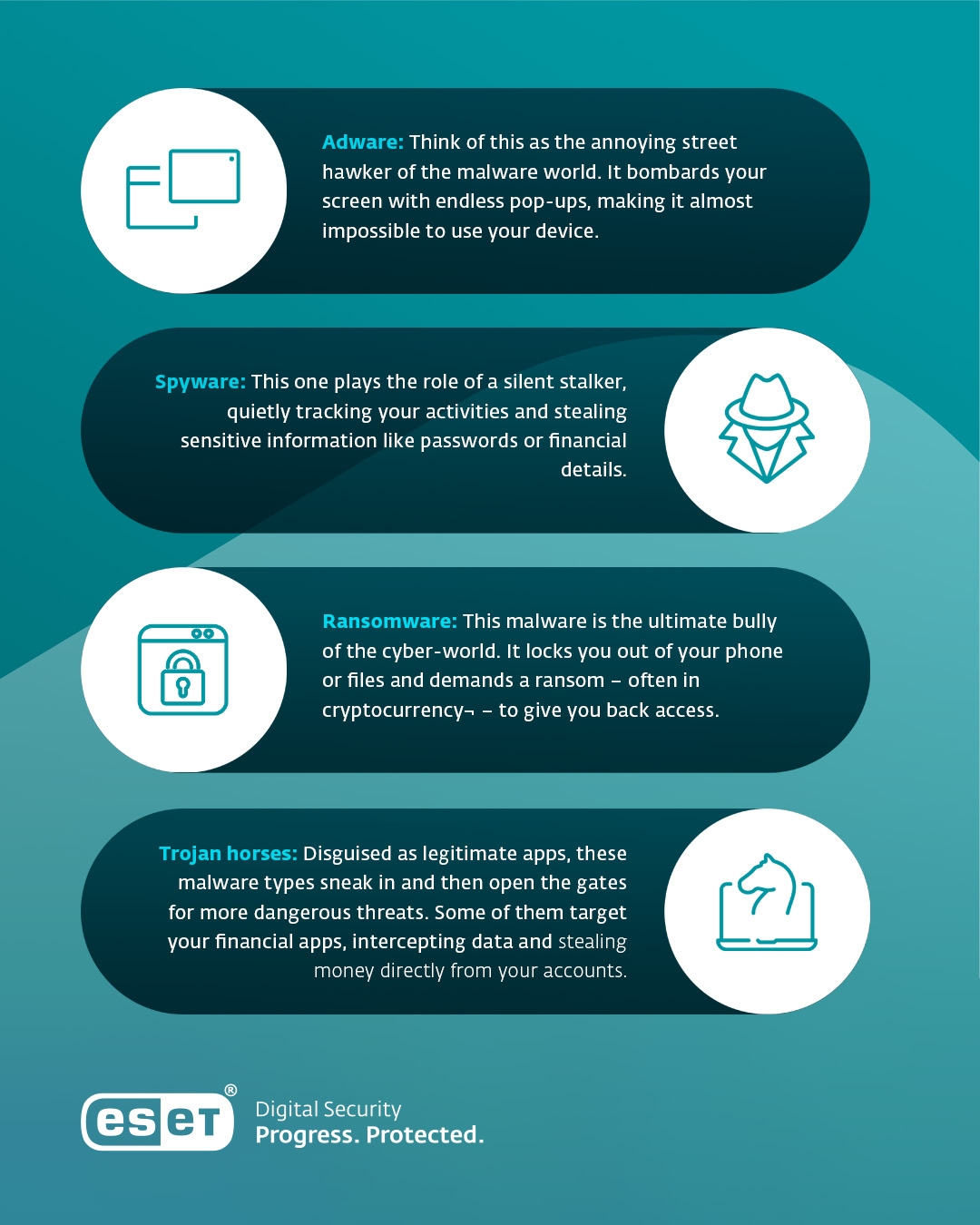
Once on your device, malware can dig deep into your personal life, swipe your banking details, snoop in on your private conversations, or even lock you out of your own files demanding payment to let you back in. In short, malware is like a bad roommate – it eats up your resources, makes your life harder, and sometimes steals your stuff. So – how do you know whether or not you’ve got malware on your device?
Warning signs: Is your Android phone asking for help?
Just like your body shows symptoms when you're feeling under the weather, your Android phone might also drop hints that it's infested with malware. Pay close attention to your device’s behavior and look for warning signs.
Is your phone being tormented by malware?
Here are some red flags to watch out for:
- Unusual battery drain Malware can run silently in the background, eating up your phone’s juice without you realizing it.
- Increased data usage
Malware might silently send information from your phone to a remote server or download unwanted content. Keep an eye on your monthly bill - Unexpected pop-up ads
These ads can be intrusive, annoying, and sometimes impossible to close. Pro tip: Don’t click them – you may invite even more unwanted guests on to your phone - Presence of unfamiliar apps
Malware often installs itself as a fake app or piggybacks onto legitimate ones. Check your app list regularly – mystery apps are rarely a good sign - Performance issues
Frequent freezing, crashing, or painfully slow performance could indicate malware is clogging up your device’s resources - Unexplained charges on your bill
Malware can initiate premium services or fake transactions, draining your wallet without your permission - Overheating device
Unless you’ve been sunbathing, a constantly overheating device is another red flag. Malware can overwork your phone’s CPU, leaving it hot to the touch - Text messages sent without your knowledge
Some infestations hijack your messaging apps, spamming your contacts with malicious links
Warning signs are clues, not proof
A hot phone, excessive data use or poor battery life can also result from an old battery, a system update, a demanding game or a legitimate app. Look for several changes happening simultaneously: unfamiliar apps, persistent ads outside your browser, unexpected accessibility prompts or messages sent without your knowledge. Search Settings for “data usage” or “battery usage” to see which apps are consuming the most resources.
Say goodbye to Android malware: Your rescue plan, step-by-step
If you think your phone or tablet might be infested, don’t panic. There are measures you can take to kick malware to the curb and reclaim your device. We’ll guide you through them – one step at a time.
Don´t feel like reading anymore?
Find out more about Android Threats from our experts in this episode of Unlocked 403,
a cybersecurity podcast by ESET.
Step 1: Disconnect from the internet
Oftentimes, malware relies on internet access to send or receive data, so make sure to turn off Wi-Fi and disable mobile data. However, some malware can still perform malicious activities offline, so disconnecting from the internet should be combined with other protective measures.
If you need to update Android, run a trusted scan or download ESET Mobile Security for Android, briefly reconnect to a trusted network.
Step 2: Notify your contacts
Alert your contacts if spam messages or suspicious links were sent from your phone or account. A quick group text can save them from falling into the same trap.
Step 3: Restart your phone in safe mode
Safe Mode is a secure space that can be established on your device, one where only essential apps keep running. This will help you pinpoint the problematic apps and put them out of service.
Because the exact sequence varies by manufacturer, use the specific method below for your brand. A “Safe mode” label will appear at the bottom of the screen upon a successful restart.
- Samsung Galaxy Devices: Press and hold the Side and Volume Down buttons simultaneously until the power menu appears. Tap and hold the Power off icon on the screen until the Safe mode prompt appears, then tap it to restart.
- Xiaomi & Redmi Devices: Turn the phone completely off. Press and hold the Power button until the Xiaomi/Redmi logo appears, then immediately press and hold the Volume Down button until the phone finishes booting into Safe Mode.
- OPPO Devices: Turn the phone off. Press and hold the Power button and Volume down until it vibrates. Then release the Power button but keep pressing Volume Down button until the device boots up completely.
- vivo Devices: Turn off your phone. Press and hold the Power button until the vivo logo appears. Wait for about five seconds and press and hold the Volume Down button and keep holding it until the phone finishes restarting.
- Google Pixel Devices: If the phone is on, press the Power and Volume Up buttons to open the power menu. Touch and hold either Power off or Restart on the screen until the Reboot to safe mode prompt appears, then tap OK. For Pixel 5a & earlier – Simply press and hold the Power button for a few seconds or tap Power off on your screen.
*To exit Safe Mode on phones by any of these brands, simply restart your phone normally.
Step 4: Hunt down suspicious apps
Malware often disguises itself as innocent-looking apps. Try to find and delete them.
How to:
Open Settings and search for Apps or Application Manager. Review unfamiliar and recently installed apps, including apps with generic names or icons. Select an app you do not trust and choose Uninstall.
If an app will not uninstall:
Do not give a suspicious app additional permissions. Search Settings for device admin apps or device administrators and remove its administrator access. Then return to Settings > Apps and try to uninstall it again.
Also search Settings for Accessibility, Display over other apps or Appear on top, and Install unknown apps. Review apps with these powerful permissions. Malicious apps can abuse them to read screen content, hide an uninstall button, imitate a login screen or install additional apps. Turn off permissions that do not have a clear purpose before removing the app.
Step 5: Update your device
Outdated software can leave your phone vulnerable to attacks. Patch up those security holes by installing updates.
How to:
Open Settings and search for system update. If an update is available, download and install it. Menu paths vary by manufacturer and Android version. Restart your phone afterwards if prompted.
Step 6: Use built-in security features
Take advantage of Google’s Play Protect to scan for malicious apps.
How to:
Open the Google Play Store, click on your profile icon and choose Play Protect. Review its status and select Scan to check for harmful apps. Follow the removal instructions for anything it flags. The labels may differ slightly between Play Store versions.
Step 7: Download a trustworthy security app
Sometimes built-in tools are not enough. Run a full scan with ESET Mobile Security for Android, installed from Google Play. Avoid tools promoted by alarming pop-ups, unsolicited messages or advertisements: fake virus cleaners and “RAM boosters” can themselves be unwanted software.
How to pick the right security software?
Not all security apps are created equal. When choosing the right one to protect your Android device, look for a solution that:
- Offers reliable protection against malware and other cyber threats.
- Includes anti-phishing tools to keep your personal data secure while browsing.
- Provides anti-theft features to help you recover your device or protect your data if it’s lost or stolen.
- Enhances your safety with payment protection for secure online transactions.
ESET Mobile Security for Android checks all these boxes – and more. Trusted by millions worldwide, ESET combines advanced protection with user-friendly features to keep your device secure and your personal data private. Cover all the basics with the free version or test the premium version of the app for 30 days for free.

Step 8: Factory reset as a last resort
If nothing else works, a factory reset can completely cleanse your phone of malware. It's crucial to back up any important data before doing this because a factory reset will also erase all of your personal information from the device. Also, be careful when restoring data after the reset, as you could potentially re-install the malware if it was included in the backup.
Before resetting, use another trusted device to change passwords that may have been compromised, change any password you reused and enable multi-factor authentication. Review recent sign-ins and payment activity. Contact your bank, mobile provider or the affected service promptly if you see unauthorized activity.
How to:
Back up photos, contacts and documents to cloud storage or an external drive. Search Settings for reset or factory reset, then follow your device’s instructions to erase all data. After the reset, only restore essential files. Do not restore unfamiliar APK files or app backups that may include unwanted apps.
Fake virus warnings and browser-notification spam
A full-screen message saying “virus detected”, “your phone is infected” or “call support now” is often a deceptive web advert or a website notification you allowed - not proof that Android is infected. Close the page without tapping its buttons. Never call the number or install the recommended app.
For more on spotting and getting rid of these fake alerts, see our article on fake virus alerts.
Now you’ve got it all covered! By following these steps, you’ll not only rid your phone of malware, but also set it up for better defense in the future.
Building strong cyber-defenses: Prevention as the best cure
Prevention isn’t just a chore. It’s an essential part of your defense against any unwelcome guests. Protecting your phone proactively ensures that you don’t lose precious time, data, or money battling infestations later. So how do you fortify your defenses? Brick by brick.
Brick 1: Keep software updated
Regularly update your operating system and apps to stay one step ahead of potential threats. You can also turn on automatic updates so you never miss one.
Brick 2: Only download apps from trusted sources
Downloading apps from shady third-party stores is never a good idea. Stick to the Google Play Store, where apps are vetted for security. Check app ratings and reviews before downloading to avoid fakes. There are also organizations that aim to raise the overall security posture of app ecosystems by leveraging industry standards for app security – such as the App Defense Alliance, where ESET is a founding member.
Brick 3: Review app permissions
Be cautious of apps asking for permissions that don’t match their purpose. For example, a flashlight app does not need access to messages and contacts. Review permissions regularly in Settings > Apps to spot anything fishy.
Review powerful permissions such as Accessibility, Device admin, Display over other apps and Install unknown apps as well. Disable access that an app does not need for its stated purpose.
Brick 4: Avoid suspicious links
Received an unexpected message promising you a free gift or an urgent warning about your bank account? Don’t click it! Cybercriminals love baiting users with malicious links and attachments. When in doubt, delete it.
Brick 5: Use strong, unique passwords
At least 12 characters long, upper- and lower-case letters, numbers, and special characters should be placed, not only at the end. Or use a passphrase, which is a long combination of words and generally hard to guess. A password manager can help you generate and store passwords securely, so you don’t have to remember them all.
Brick 6: Enable two-factor authentication (MFA)
Adding MFA is like installing a deadbolt on your digital door. Even if someone steals your password, they’ll need an extra code sent to your phone or email to break in. Use MFA for all logins. Preferably one part of your verification should include biometrics.
Brick 7: Arm yourself with a reliable mobile security solution
Think of ESET Mobile Security for Android as part of your phone’s everyday defenses. Keep it updated and use it regularly to scan for threats.
Brick 8: Stay educated on digital security
Finally, your knowledge is your strongest defense. Stay updated on the latest digital security practices and threats. Learn to recognize phishing attempts, avoid scams, and practice safe online behavior. The more you know, the harder it is for malware to outsmart you.
By staying vigilant and following these steps, you’ll make your phone a less appealing target for cybercriminals. So, take a few minutes today to implement these practices. Your future self (and your phone) will thank you for it.
Still, have some questions? Perhaps you’ll find the answers here!
1. Can Android devices get viruses?
Yes, Android devices can be vulnerable to malware, including viruses, trojans, spyware, and other malicious software.
2. Is a factory reset of my device the only solution?
No, many infestations can be removed without a factory reset. However, a reset ensures complete removal, making it a good last-resort option.
3. How can I differentiate between legitimate and malicious apps?
Check the app's reviews, download numbers, and ideally also developer details. Be cautious of apps that request permissions unrelated to their functionality.
4. What should I do if my device is still acting suspicious after following all the steps?
If issues persist, consult a professional technician, or reach out to your device manufacturer for further assistance.
5. Can I remove malware without losing my data?
Yes, uninstalling malicious apps and running antivirus scans can often resolve malware issues without the risk of data loss.
6. How do I prevent my phone from getting infected again?
Stick to preventive practices like updating software regularly, using trusted security apps, and avoiding suspicious links or downloads.
7. Is a virus warning on my Android phone real?
Not necessarily. If the warning appears only in Chrome or another browser, it usually comes from a deceptive web page or a website notification. Close it without interacting, remove the website’s notification permission and run a scan if you also see other signs of compromise.
8. What if I suspect that malware may have stolen my passwords or banking details?
Use another trusted device to change the potentially compromised password and every account where you reused it. Enable MFA, review recent account activity and contact the affected provider or bank if you see anything unfamiliar.