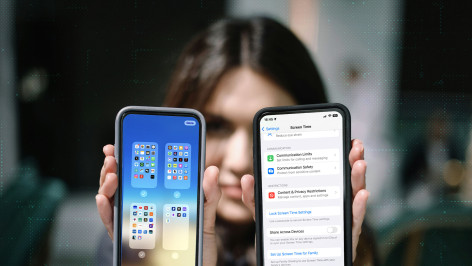
Apps are what makes the iOS ecosystem so compelling. That’s why users downloaded over 28 billion of them last year. But they can also be distracting and might even expose you to both privacy and security risks. Fortunately, there is a range of ways to mitigate these risks. Read on for a comprehensive, step-by-step guide to hiding and/or locking your iOS apps.
Why hide your iOS apps?
We increasingly live in a mobile, app-centric world, and that’s largely thanks to Apple’s pioneering iOS ecosystem. But it’s all too easy to accumulate scores of them on your home screen. You might want to hide some of these from view for various reasons:
- Privacy and security: Apps can reveal a lot about your personal life, as well as store highly sensitive information. By hiding or locking them, you prevent not only attackers, but also bystanders, colleagues and family members from accessing information they shouldn’t
- Parental controls: You might want to prevent your children from accessing inappropriate content on their own devices
- Productivity and usability: A cleaner home screen makes your device easier to use and minimizes distractions
There are several ways to hide apps on an iPhone:
Method 1: Remove Apps from Home Screen
Effectiveness: Moderate
The first method involves removing apps from your home screen. The apps aren’t gone, they stay installed and can be found via Search or the App Library (accessed by swiping left past the main home screen). Apps hidden this way will also be visible in Screen Time, Battery Usage by App (in Settings), and your App Store purchase history.
Steps:
- Press and hold the app icon you wish to hide
- Select "Remove App"
- Tap "Remove from Home Screen"
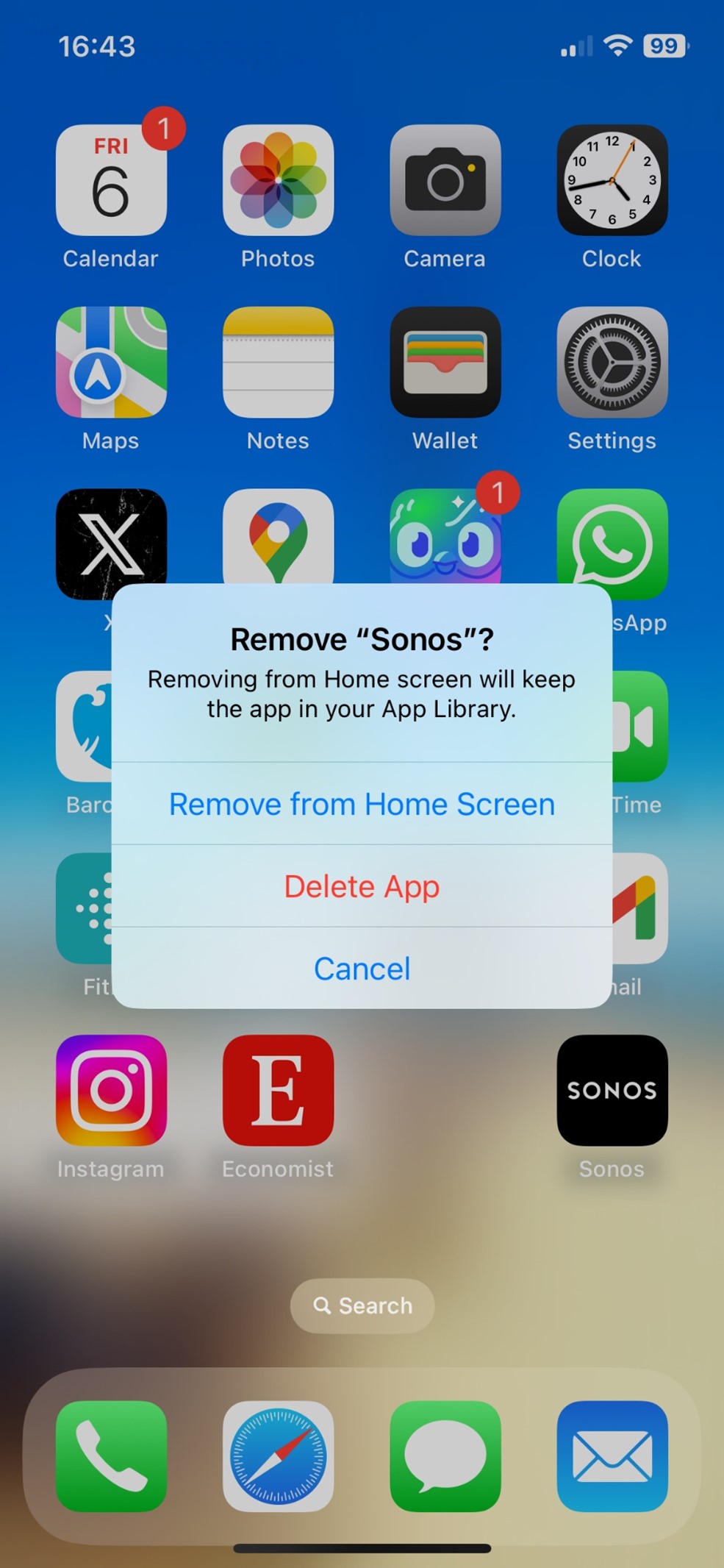
You can add an extra layer of protection by ensuring only your Face ID can unlock the hidden app:
- Press and hold the app icon you wish to hide
- Select "Require Face ID" (or Touch ID or Passcode)
- Tap "Hide and Require Face ID"
- Authenticate using Face ID
- Tap "Hide App"
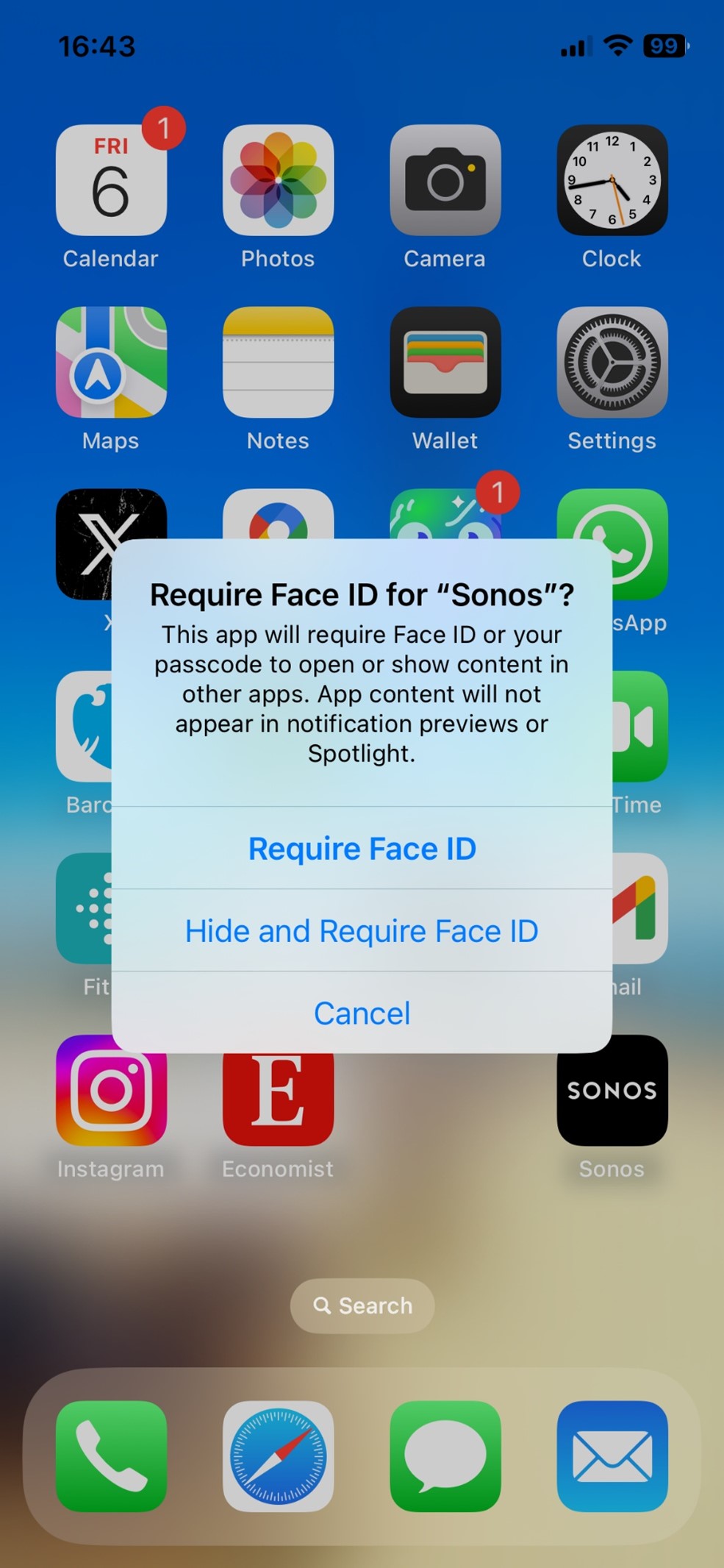
Apps hidden and locked this way will be moved to a hidden folder in the App Library which also requires authentication to view.
Note: Apps that come pre-installed by Apple with iOS 18 or later can’t be hidden. The above only applies to apps downloaded from the App Store.
Method 2: Hide Entire Home Screen Pages
Effectiveness: High
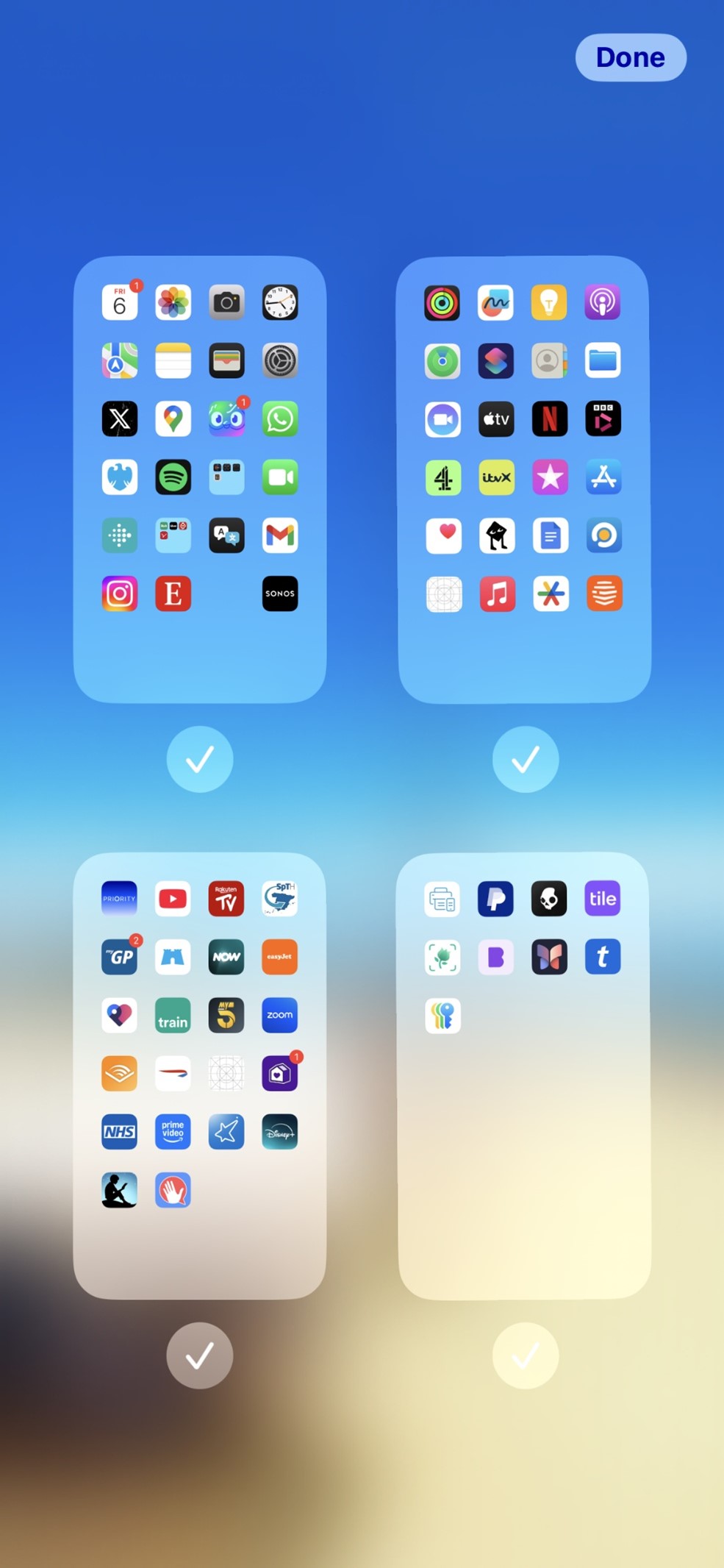
For a less targeted approach, it’s also possible to hide entire pages of apps on your home screen.
Steps:
- Long-press an empty area on your home screen until the apps vibrate
- Tap the dots at the bottom of your screen (pagination dots)
- Uncheck any home screen pages you want hidden
- Tap "Done"
Hidden pages and their apps are accessible through the App Library or Search.
Method 3: Use App Folders to Hide Apps
Effectiveness: Moderate
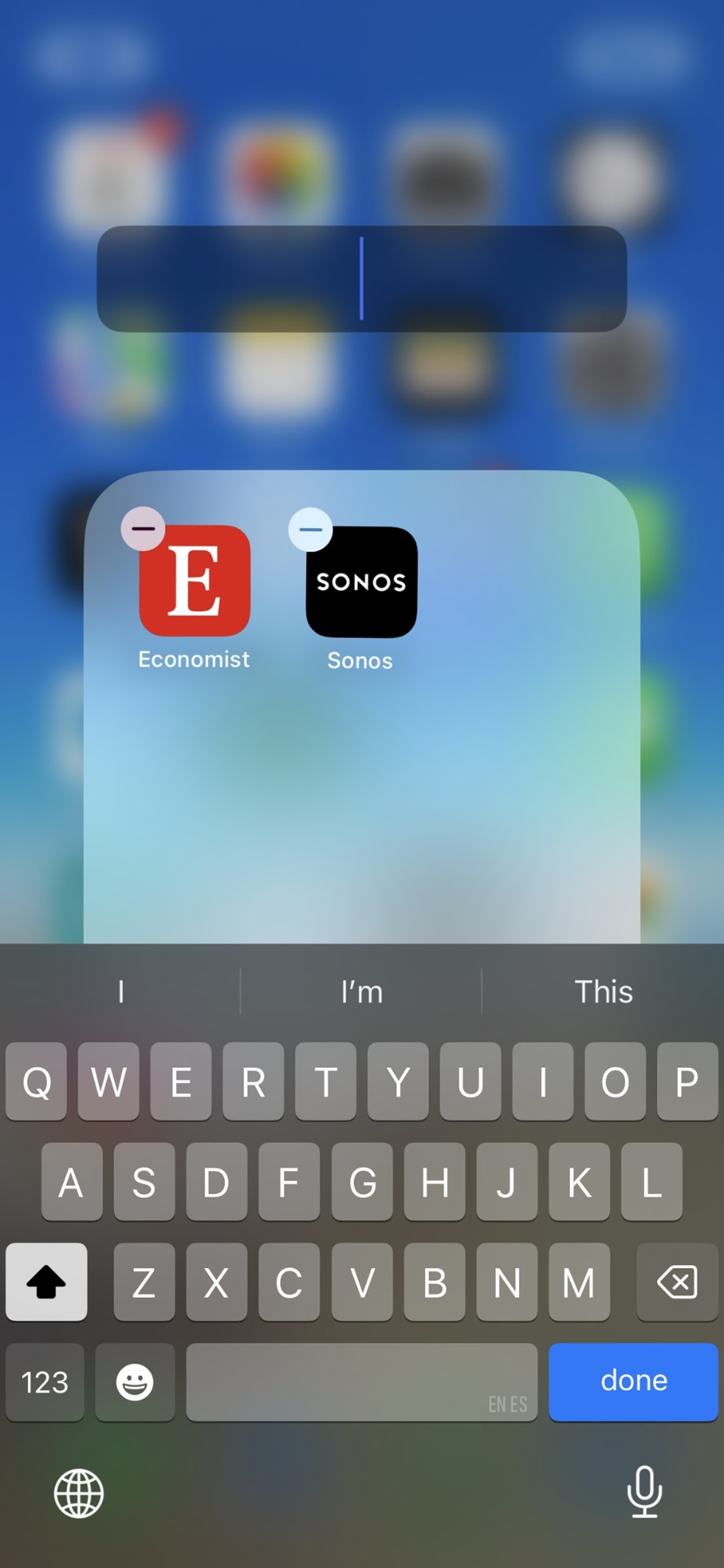
Another technique is to move apps into folders. This can help reduce visibility but also declutter the home screen and potentially improve your productivity.
Steps:
- Long-press an app until icons jiggle
- Drag the selected app over another app to create a folder. You can then drag other apps into the same folder
- Folders can contain multiple pages of apps. To move an app to a different folder page, simply drag it rightwards within the folder
Note: you can't directly lock the created folder on the home screen. However, hidden and locked folders can be created in the App Library when using Method 1.
Method 4: Hide Apps Using Screen Time
Effectiveness: High
If you’re a concerned parent, Screen Time is a great tool which allows you to hide apps or restrict access to age-appropriate content only.
Steps:
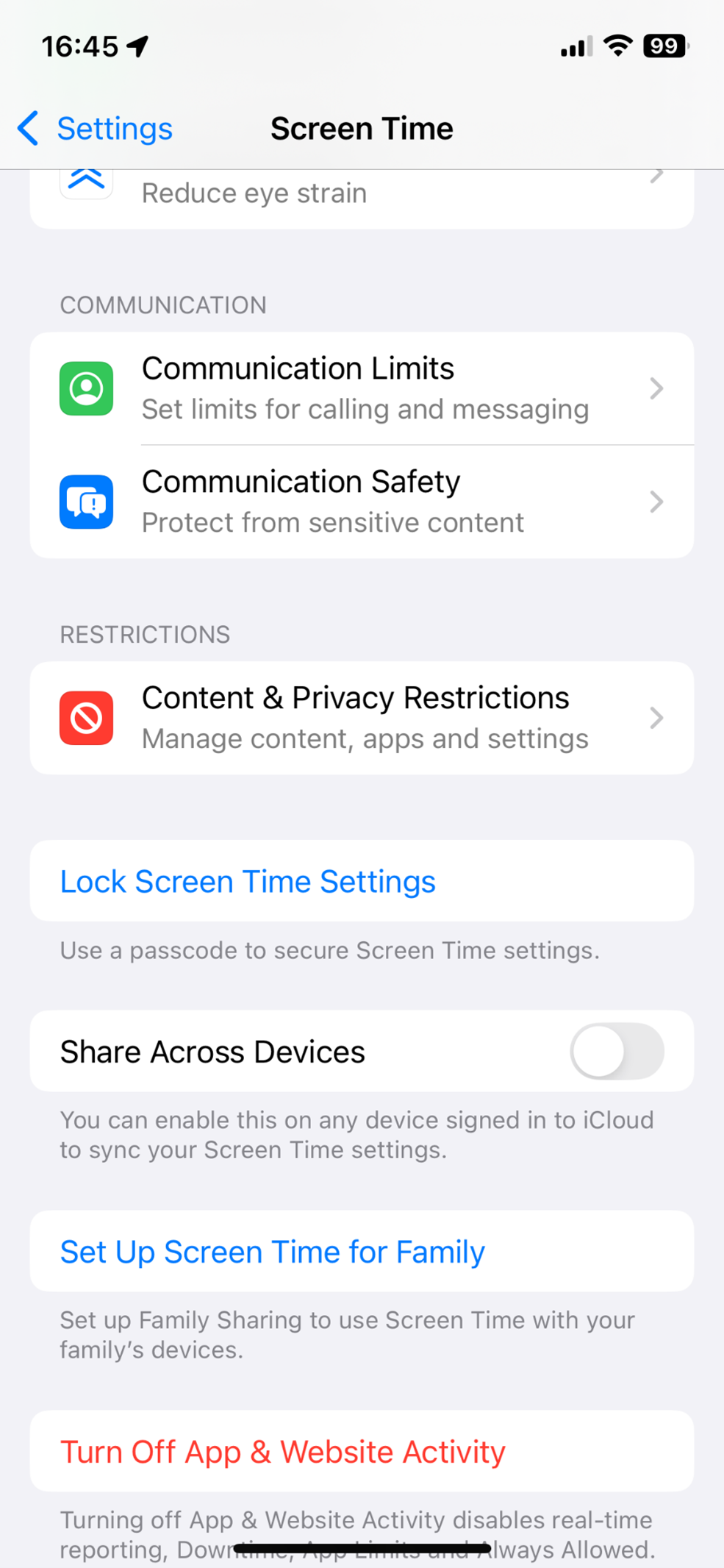
- Open Settings > Screen Time
- Tap "Content & Privacy Restrictions", then enable the toggle
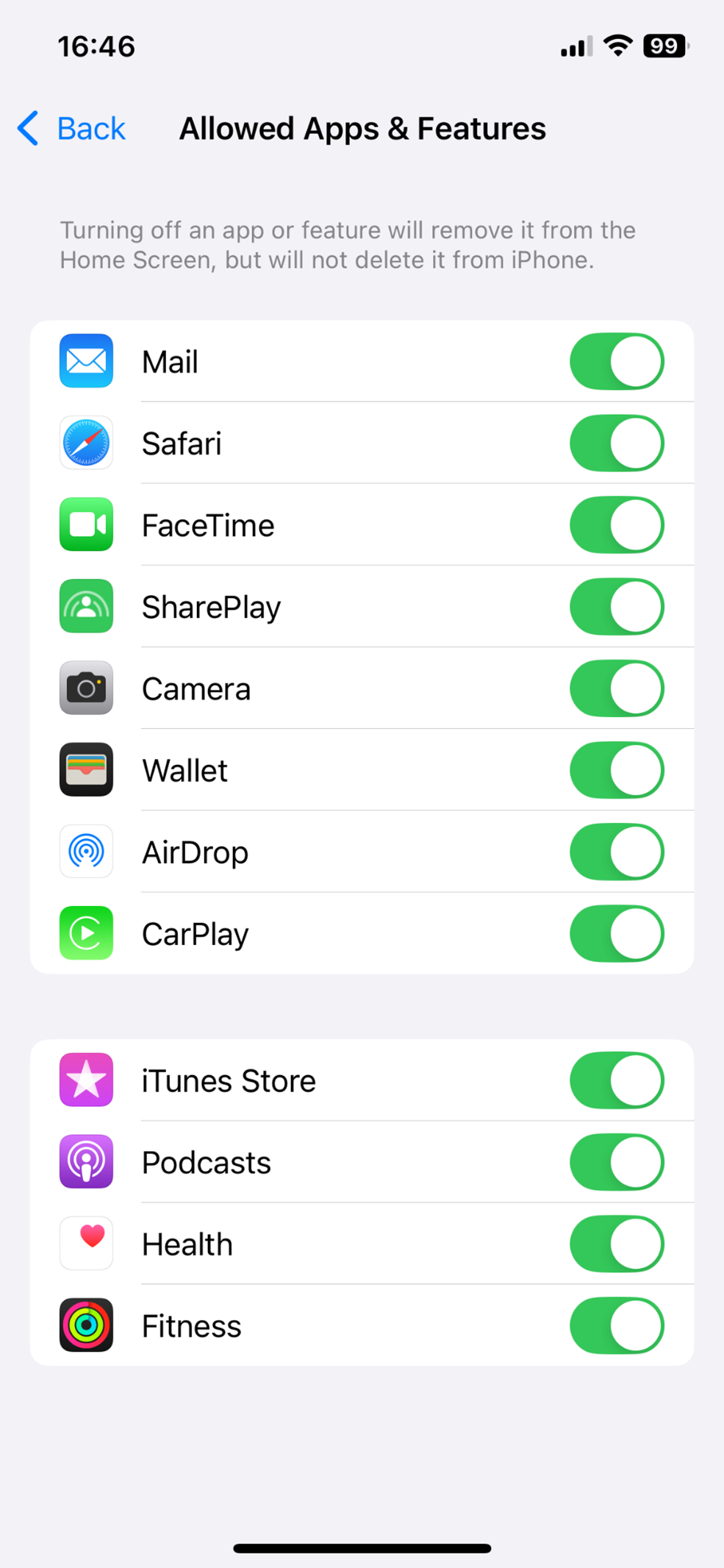
- Select "Allowed Apps" to remove system apps (like Camera, FaceTime, Safari) from the home screen
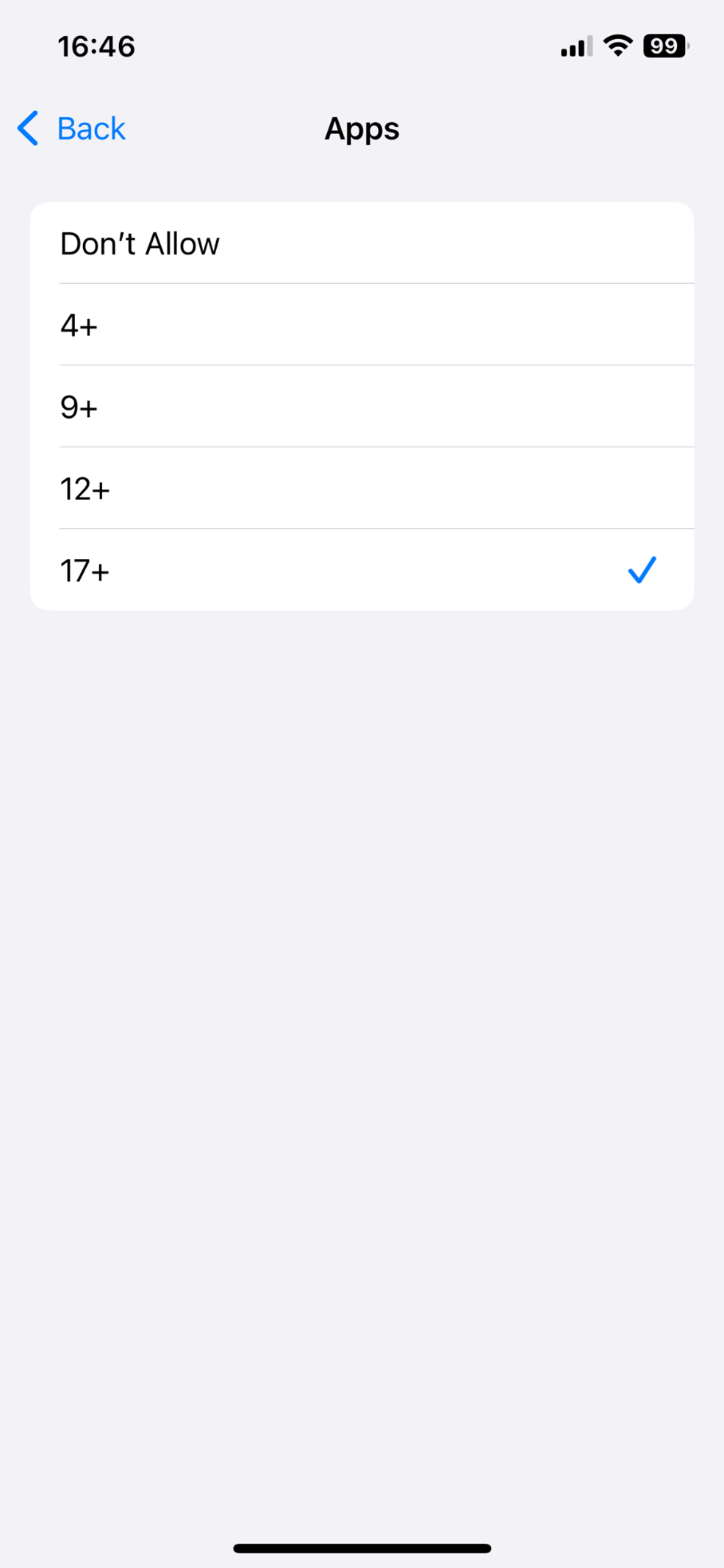
- To restrict by age, select "Content Restrictions" > “App Store, Media, Web & Games” > "Apps" and choose the age limit. Any apps above this age limit will be hidden from your child
Of course, as they get older, your kids may be tech-savvy and determined enough to bypass these features. That’s why it’s always best to talk through why you’re hiding certain apps.
Related article: Learn from child psychologist Jarmila Tomková on how to converse about the use of parental control tools effectively with your kids.
Method 5: Hide Recently Added Apps from Home Screen
Effectiveness: Moderate
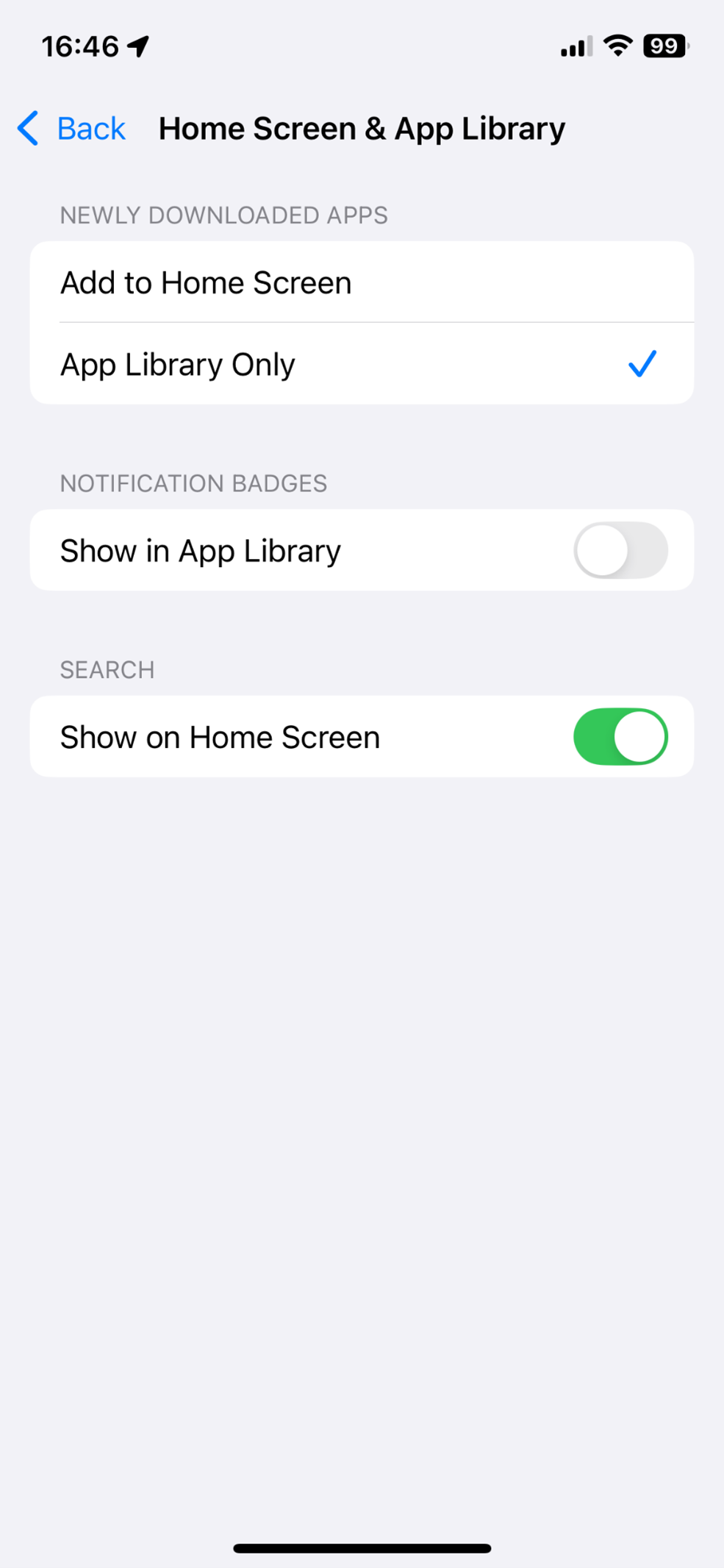
New apps automatically appear on your home screen. But it’s possible to disable this feature for a cleaner user interface.
Steps:
- Go to Settings > Home Screen & App Library
- Under Newly Downloaded Apps, select "App Library Only"
Newly installed apps will now go straight to your App Library, keeping your home screen tidy.
Method 6: Use Shortcuts App to Disguise Apps (Advanced)
Effectiveness: High
This method requires quite a few extra steps but is highly effective in disguising apps on your home screen as something else.
Steps:
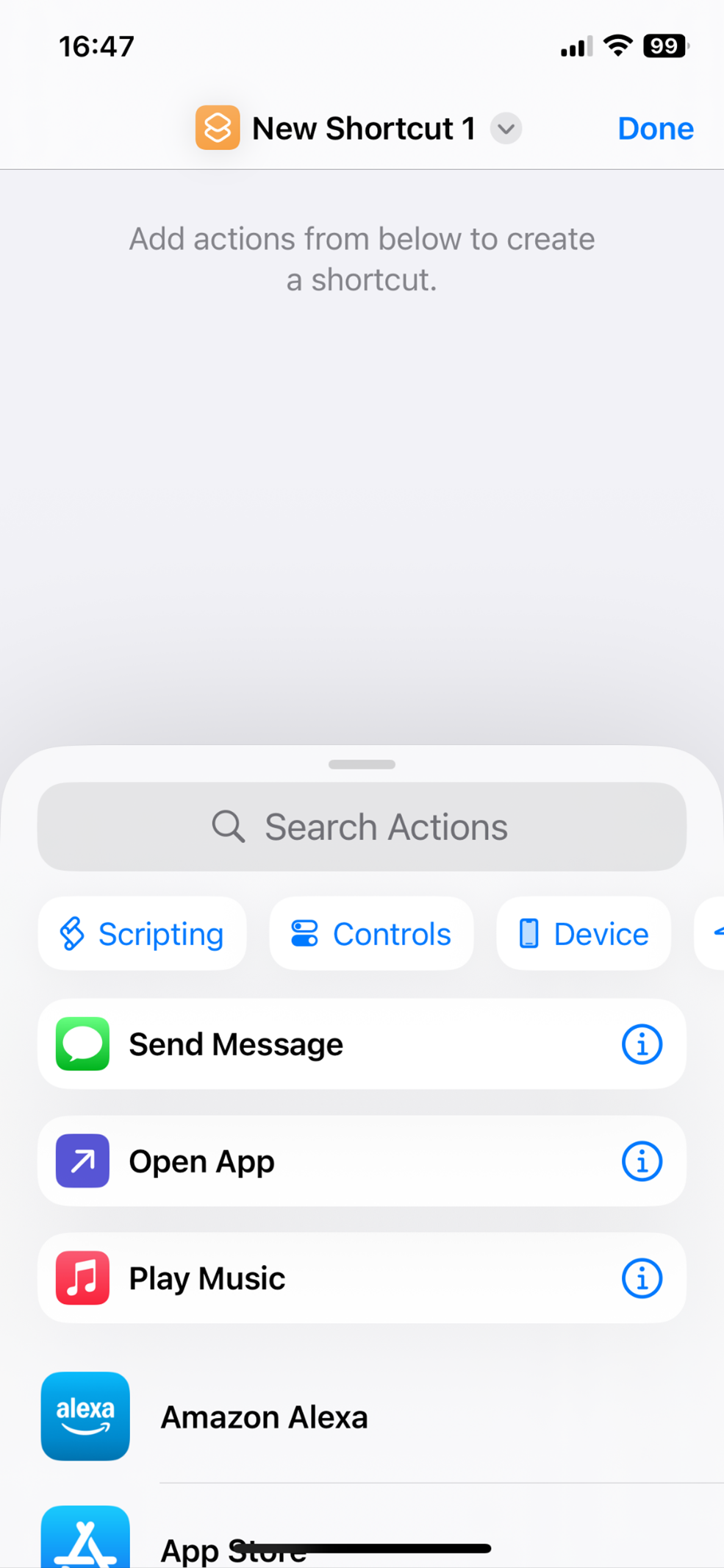
- Open the Shortcuts app
- Tap the "+" button to create a new shortcut
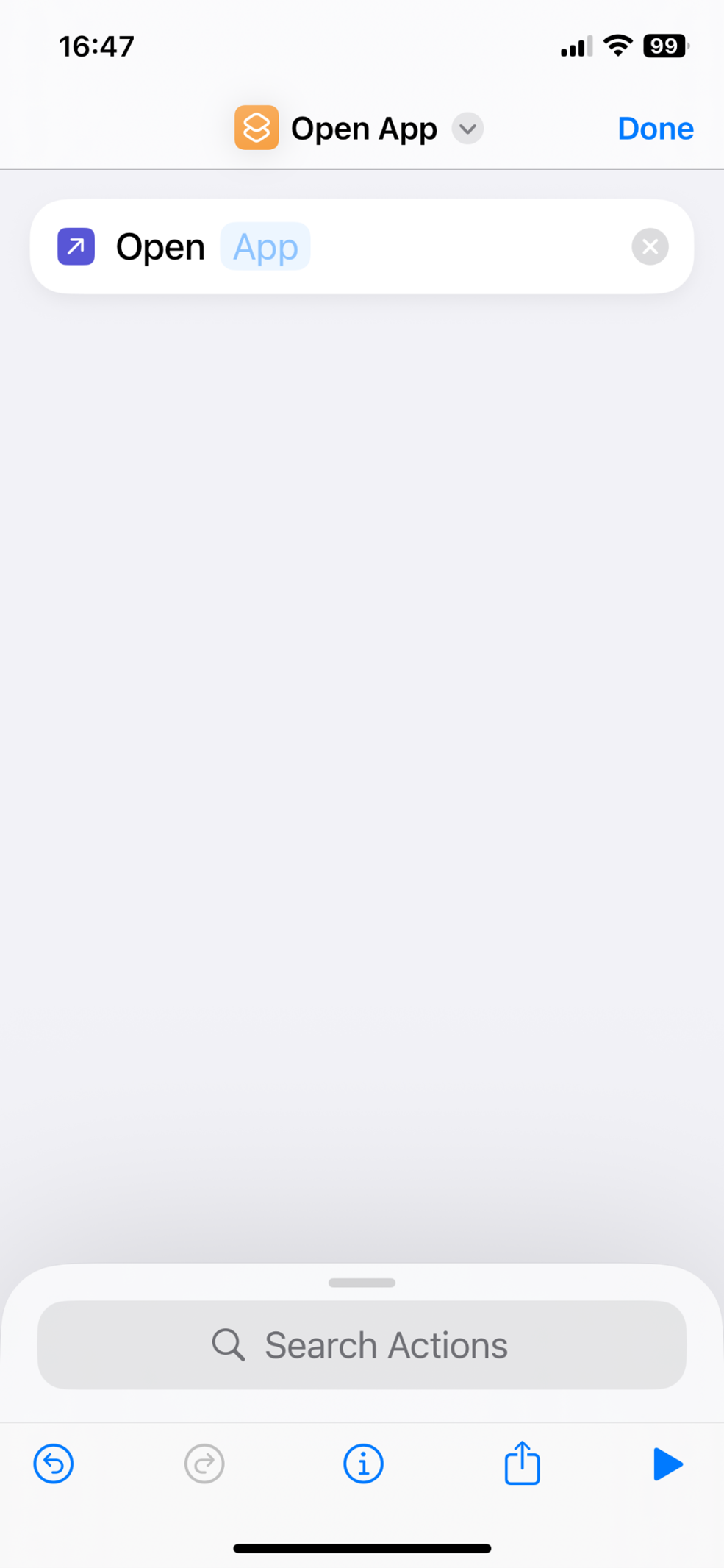
- Choose "Open App"
- Tap "App" and choose the app you want to disguise
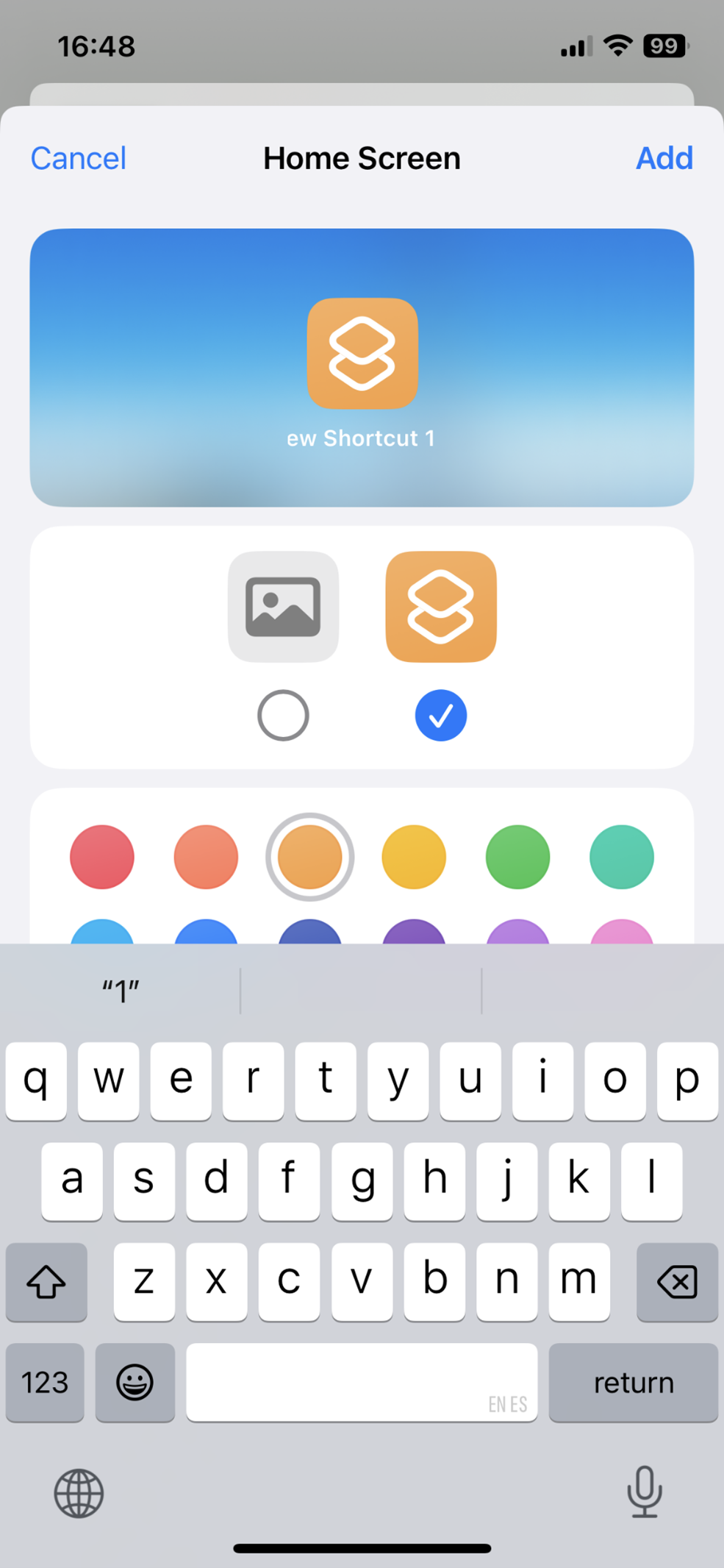
- Tap the share icon, select "Add to Home Screen"
- Rename the shortcut to something else
- Choose a new icon or image
- Tap "Add"
Now your app will appear on the home screen as a shortcut with a custom icon and name.
Note: Original app icons can be removed using Method 1 (remove from home screen).
Method 7: Create a Secret Folder (Advanced)
Effectiveness: Moderate-to-High
This is another sophisticated way to hide apps—this time, by placing them in a discreet folder that blends into the background.
Steps:
- Find and save a completely blank or plain background image online
- Set this as your iPhone wallpaper
- Create a folder full of the apps you want to hide
- Leave the folder name blank by copying and pasting an invisible Unicode character (available online)
- Position this folder in a less noticeable corner of the screen
Disabling app visibility in Search and Siri
As an extra layer of obfuscation, you can also prevent specified apps from appearing in Search or Siri suggestions.
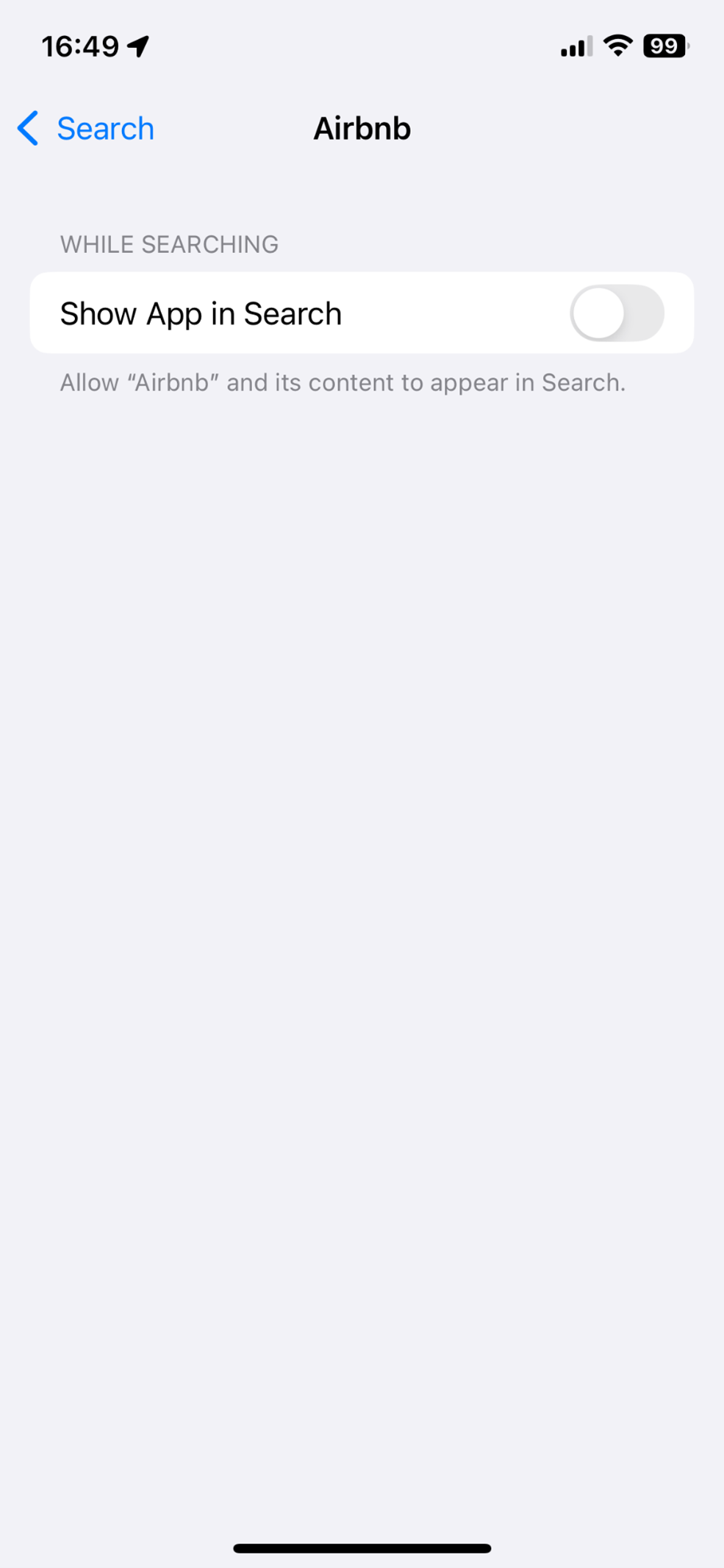
Steps for Search:
- Go to Settings > Search
- Tap the app you want to hide from search
- Toggle off "Show App in Search"
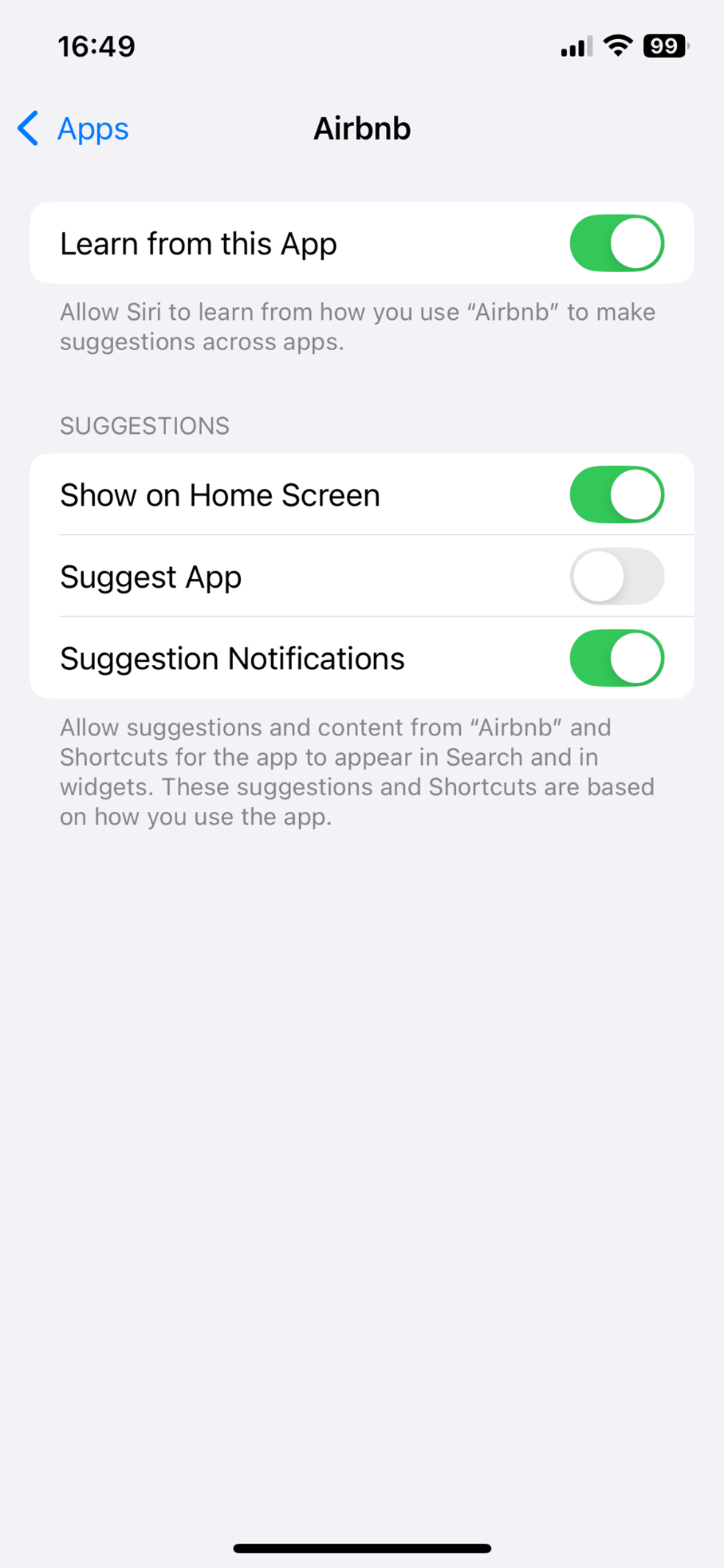
For Siri:
- Go to Settings > Siri
- Scroll down and tap Apps
- Tap the app you want to hide from Siri
- Toggle off "Suggest App"
Locking an app
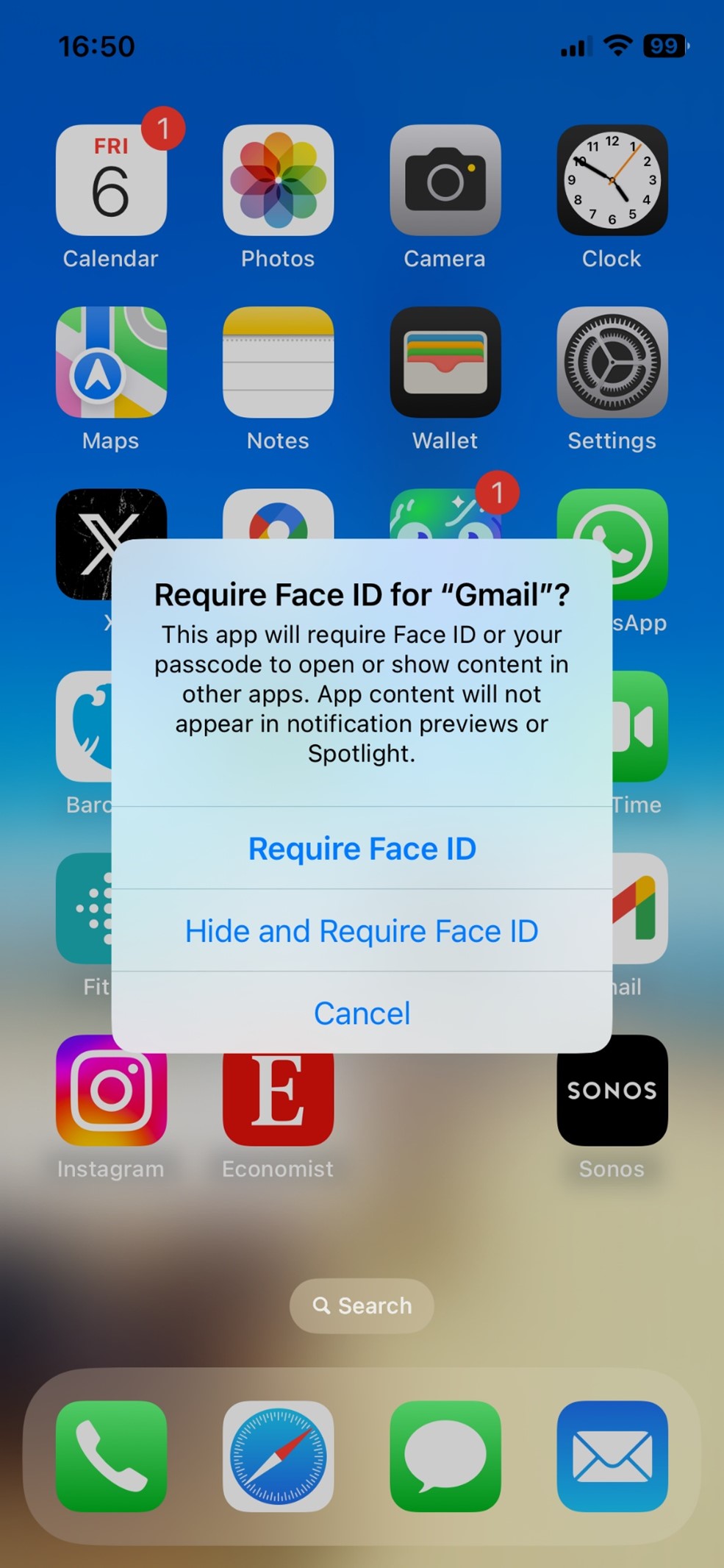
If you don’t want to hide an app, but do want to make it harder for snoopers to access, take the following steps:
- Touch and hold the app icon
- Tap “Require Face ID”
- Tap “Require Face ID” again, then authenticate using Face ID
Now only you will be able to unlock and access that app.
You can reverse this process by touching and holding the app icon, and tapping “Don’t Require Face ID.”
Note: Some system apps (e.g. Calculator, Camera, Contacts, Settings etc.) can’t be locked.
How to find hidden apps on your iPhone
If you need to locate apps you've hidden, it’s pretty straightforward. Choose one of following:
- Swipe left to access the App Library and search by name
- Go to Settings > Apps > Hidden Apps, then authenticate using Face ID
- Use the Search function on your home screen
- In Screen Time settings, check restrictions to see which apps have been disabled
Expert tips
“While hiding apps from your iPhone’s Home Screen is a convenient way to keep sensitive content out of sight, attackers or unauthorized users with sufficient time or skill can still discover them by searching or checking specific folders. Adding biometric authentication for messaging, email, or banking apps provides a user-friendly safeguard, making it harder to misuse the device, even if left unlocked. For additional security, a VPN protects data and traffic also in transit. A custom DNS service can further harden the system by blocking malicious, adult, or otherwise inappropriate content. A step up from that is DNS whitelisting, though it can become inconvenient by allowing only vetted sites, blocking everything else. Finally, for the highest level of privacy, use iPhone’s Lockdown mode. It hardens the device against advanced spyware like Pegasus or Predator by disabling its - potentially vulnerable - advanced features. If threat modeling suggests these measures are still insufficient, switching to a device running a privacy-focused operating system such as Graphene OS may be advised.”
- Ondrej Kubovič, Security Awareness Specialist
Optimize security and privacy on your iPhone with ESET HOME Security. It offers:
Real-time blocking of malicious websites and phishing scams
Online privacy protection via Unlimited VPN
Alerts if your data have been compromised, via advanced Identity Protection
Get ESET HOME Security Ultimate today for worry-free, privacy-enhanced browsing on your iPhone.
Conclusion
There are many ways to customize your iPhone in order to enhance security and privacy, minimize distractions, and improve the look and feel—ranging from the simple to the more advanced. For extra peace of mind, it’s even worth considering combining some of the above methods. You can also leverage Screen Time to protect your children from inappropriate content.
It makes sense to check in once in a while to review your strategy. There are likely to be new apps on the home screen you’d prefer to hide, and perhaps old ones that are better off being deleted altogether.
Frequently asked questions
Is there a way to completely hide an app on an iPhone?
There are several ways to hide apps from view: by using Screen Time restrictions, removing them from home screens, placing them in folders, or disguising them using Shortcuts. However, it’s not possible to make them entirely inaccessible without uninstalling them.
Can you hide an entire page of apps on an iPhone?
Yes. Long-press the home screen, tap the page indicator dots, and uncheck the pages you'd like hidden.
Can I hide recently added apps on my iPhone?
Yes, go to Settings > Home Screen & App Library, then set new downloads to "App Library Only.”
How do I create a secret folder on my iPhone?
Set a plain or blank background image as your home screen wallpaper. Then create a folder with the desired apps, use an invisible Unicode character for its name, and place it discreetly in the corner of the screen.
How do I create a locked folder on my iPhone?
Apple’s iOS doesn’t natively support app folder locking but you can lock individual apps with Face ID, Touch ID, or a passcode.
How do I hide apps with Shortcuts?
Open the Shortcuts app and create a new shortcut, select the app you want to disguise and tap the share icon. Add it to the home screen and rename the shortcut, choosing a new icon or image.
How do I find hidden apps on my iPhone?
There are various ways, depending on how you hid them in the first place. These include searching via the App Library or Search function on the home screen, navigating via Settings > Apps > Hidden Apps, or checking restrictions in your Screen Time settings.